
Microsoft Copilot use cases become useful when they solve a specific problem in the workday. A sales representative needs an accurate follow-up after a meeting. A finance manager needs to explain a budget variance. An operations coordinator needs a project update without searching through several conversations.
Copilot can help prepare those outputs, but buying a license does not automatically create a better process. Someone still needs to identify the source information, review the result, and decide what happens next. These ten examples show where to begin, what to ask, and what to verify.
What can Microsoft 365 Copilot do for a business?
Microsoft 365 Copilot provides AI assistance for work such as summarizing, drafting, and analyzing information across supported Microsoft 365 experiences. Available features depend on your license, application, organization settings, and access to the underlying information. A free chat experience should not be assumed to provide every capability described here.
This article focuses on assisted work. Reading a spreadsheet and drafting a recommendation is different from updating an accounting system or sending a payment. Those actions require separately evaluated tools, connections, permissions, and approvals. Read Which Microsoft Copilot Tool Should Your Business Use? before choosing a product for a workflow.
Five Microsoft Copilot use cases for sales
For sales teams, a sensible starting point is reducing the administrative work around customer conversations. Keep an employee responsible for commitments, pricing, and the final message.
1. Summarize meetings and prepare follow-up
After a Teams discovery meeting, use Copilot to organize the discussion into customer needs, decisions, open questions, and next steps. This gives the salesperson a starting point for a follow-up email instead of reconstructing the conversation from memory.
What to check: Post-meeting questions about spoken discussion require an available transcript. Confirm meeting settings and your organization’s transcription practices in advance. Check names, dates, and commitments before sending. Microsoft explains the Teams requirements here.
2. Create a proposal first draft
Use approved service descriptions, discovery notes, and a current proposal template to prepare an initial draft. A construction supplier, for example, could organize a customer’s requirements into scope, assumptions, and open questions.
What to check: Verify scope, exclusions, delivery dates, and commercial terms. A persuasive sentence can still promise something your business cannot deliver. Keep current templates in a clearly identified location.
3. Prepare an account briefing
Before an account review, ask Copilot to summarize selected correspondence, meeting notes, and approved documents that are available to you. A professional services firm in Novato could use this to prepare a concise briefing before a renewal conversation. This is an illustrative example, not a reported client result.
What to check: Separate documented facts from assumptions. Missing correspondence can make an account look healthier than it is. Public company research, if used, needs separate source and date checks.
4. Prepare consistent CRM notes
A CRM is the system used to track customers, opportunities, and follow-up. Copilot can turn supplied meeting notes into a structured entry for an employee to review and paste into that system. This is a practical starting point even without a direct CRM connection.
What to check: Do not assume ordinary Copilot access can write to your CRM. Microsoft documents CRM actions through its Sales agent with specific setup requirements. Confirm support for your CRM, licensing, and permissions before promising automatic updates. Review Microsoft’s Sales agent documentation.
5. Review a sales pipeline export
Use a current, structured Excel export to examine opportunities by stage, expected close date, and last activity. Ask for exceptions that warrant a salesperson’s attention rather than treating the output as a reliable prediction of future revenue.
What to check: Confirm the export date, stage definitions, and calculations. Copilot cannot know about an unrecorded customer conversation. Pipeline totals and probability assumptions still need validation.
For more examples of clear instructions, explore PCC’s Microsoft 365 Copilot Prompt Guide.
Three Microsoft Copilot use cases for finance
Finance work needs reliable numbers and a clear review process. Use Copilot to assist with analysis and explanations while keeping your accounting system and approved reports as the authoritative records.
6. Compare budget and actual spending
In Excel, ask Copilot to help calculate differences between budgeted and actual spending in a structured table. A finance manager can then focus on investigating the largest differences. Microsoft documents support for insights, formulas, and summaries in Excel.
What to check: Check formulas, signs, date ranges, and totals against the approved report. A spending difference does not establish its cause. Confirm file support and setup for your Excel experience. See Microsoft’s Excel guidance.
7. Organize invoice and payment exceptions
Start with an approved invoice register or aging report exported to Excel. Ask Copilot to help identify items needing review, such as overdue invoices or repeated invoice numbers. This supports an exception review without giving AI authority over payments.
What to check: Reconcile findings with accounting records. Partial payments, credit notes, and reused numbering can change the interpretation. Verify banking changes through your established independent process; an AI summary is not payment authorization.
8. Draft a leadership financial summary
After the finance team approves the figures, use Copilot to prepare a plain-English explanation for leadership. Supply the verified report and approved context so the draft distinguishes results from interpretation.
What to check: Check every number and comparison. Do not let the draft confuse profit with cash or imply that a trend will continue. A responsible finance reviewer should approve the final summary.
These tasks work best when document storage and access are organized. PCC’s Cloud Solutions connect Microsoft 365 support with practical collaboration and information management.
Two Microsoft Copilot use cases for operations
9. Turn working notes into process documentation
Provide existing instructions and notes from the person who performs the task. Copilot can organize them into a draft procedure with prerequisites, steps, exceptions, and escalation points. For a San Rafael construction office, an example might be the administrative process for collecting project closeout documents.
What to check: Have an experienced employee walk through the procedure. A polished document can omit a critical handoff. Record an owner and review date before adopting it.
10. Prepare a project status update
Use a dated status tracker and selected meeting notes to draft a consistent stakeholder update. Copilot can help organize accomplishments, blockers, decisions needed, and next steps without requiring the coordinator to start from a blank page.
What to check: Confirm the reporting cutoff and current owners. A planned task must not become a completed task in the summary. Have the project owner approve external updates.
More delegated workflows require additional evaluation. Read PCC’s explanation of Copilot Cowork for the broader questions around access, costs, and oversight.
What mistakes should businesses avoid?
The first mistake is asking for a complete answer without supplying complete information. Specify the source files, reporting period, intended audience, and desired output. Ask Copilot to identify gaps and cite its sources. Then open those sources when an important conclusion depends on them.
The second mistake is allowing sensitive information into a workflow without checking access. Decide which business tools are approved, who can use them, and what information is appropriate. Third-party agents and connections need their own review.
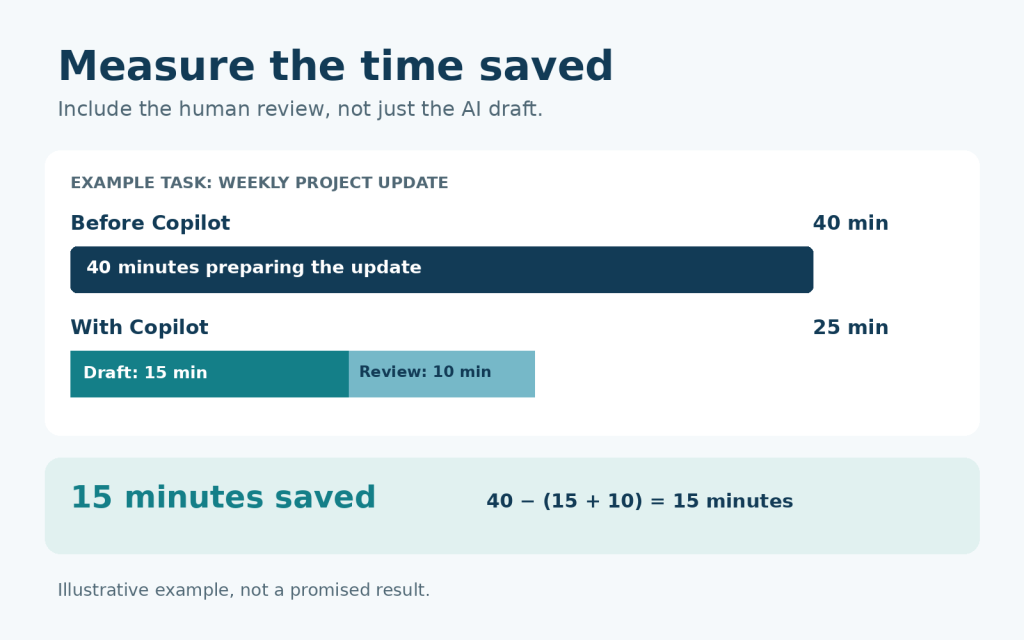
the actual time saved. Illustrative example, not a promised result.
How should a small business measure the value?
PCC’s recommendation is to choose one recurring task, one owner, and a short pilot. Record how long the task takes today, then measure the time to prepare and review an acceptable Copilot-assisted result. Track errors and rework alongside speed.
For example, if a weekly update previously took 40 minutes and now takes 15 minutes to draft plus 10 minutes to check, the net saving is 15 minutes. That is an illustrative calculation, not a promised result. Its business value depends on whether that time supports useful additional work, reduces overtime, or removes a bottleneck. Include licensing, training, setup, and review costs.
Document the successful prompt, approved sources, and review steps before expanding. For the wider planning context, read Small Business Technology Strategy: Grow Securely and Efficiently in 2026. PCC’s AI & Business Automation services can help assess a workflow, review Microsoft AI options, and define an appropriate next step.
Frequently asked questions
What are good Microsoft Copilot use cases for a small business?
Start with recurring tasks that have clear source material and straightforward review, such as meeting follow-up, procedure drafts, or project updates.
Does every use case require the same license?
No. Availability varies by product, application, organization settings, and integration. Confirm the specific workflow before purchasing or assigning licenses.
Can Copilot automatically update our CRM?
Preparing notes is different from writing to a CRM. Direct updates require a supported connection or agent, appropriate permissions, and confirmed licensing and configuration.
Can finance teams rely on Copilot’s calculations?
Treat calculations and explanations as work requiring verification. Check formulas and reconcile figures with approved accounting reports before making decisions.
How do we know whether Copilot is paying off?
Compare the time and quality of reviewed outputs with the previous process. Include rework and total costs, and identify how the recovered time benefits the business.
About Professional Computer Concepts
Professional Computer Concepts (PCC) is a trusted Managed IT and Cybersecurity provider serving the Bay Area for over 20 years. We help small and midsize businesses simplify their IT, strengthen security, and modernize operations. Explore our services:
Managed IT Services | Cybersecurity | Cloud Solutions
From PCC’s Desk
The most useful place to start is often a task your team repeats every week. Make the information reliable, keep the review clear, and see whether the result actually improves the work. You do not need ten new workflows at once.
If you want help choosing that first task and understanding the setup it needs, contact PCC to discuss an AI Workflow Review.