

← View All Microsoft 365 How-To Guides
You can work with SharePoint files from Windows File Explorer without downloading separate copies. Microsoft recommends adding a shortcut to OneDrive when that option is available because the shortcut follows you across devices and generally performs better than device-specific syncing.
Interface note: Microsoft 365 buttons and menus can vary by license, application version, device, organization settings, and rollout. Use the closest available option and contact your administrator when a required control is unavailable.
Before you begin
- Sign in to SharePoint and OneDrive with the same approved work account.
- Confirm that you have access to the correct SharePoint site and document library.
- Make sure the OneDrive desktop app is running on the computer.
- Do not sync sensitive libraries to a personal or shared computer.
How to Sync SharePoint Files to File Explorer
-
Open Microsoft 365. Go to m365.cloud.microsoft and sign in with your approved work account.

Open Microsoft 365 and sign in with your work account. -
Open SharePoint. Select Apps and more, then select SharePoint. If SharePoint is not displayed, use the search box to find it.
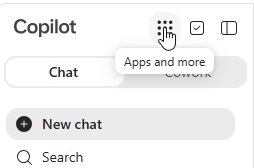
Select Apps and more, then open SharePoint. -
Open and connect the correct document library. Open the SharePoint site and document library you need. Confirm the site and folder names before connecting the library to your computer.
Use Add shortcut to OneDrive when that option is available. If your organization uses device-specific syncing instead, select Sync in the library toolbar and allow the browser to open OneDrive.
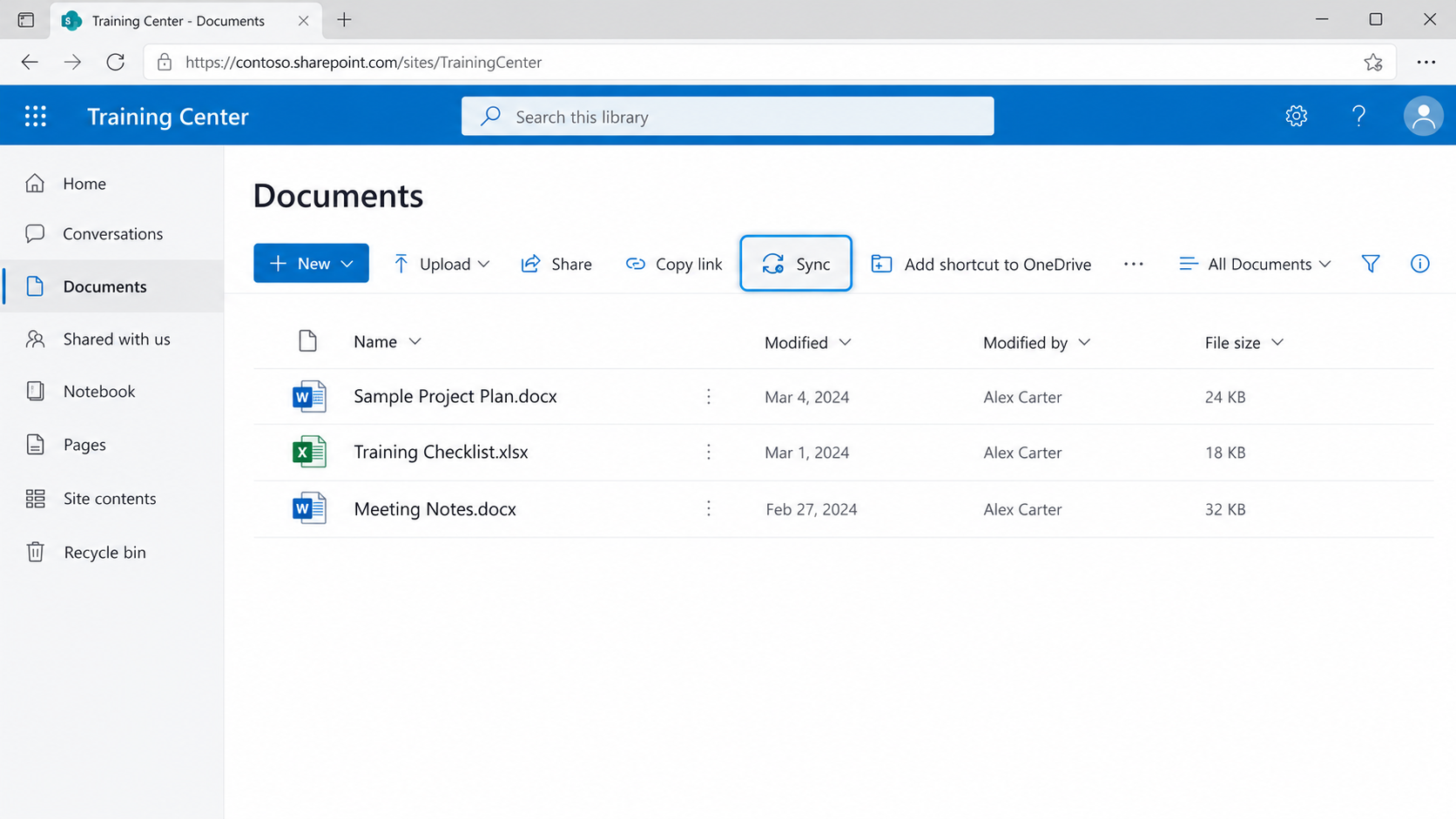
Select Sync in the SharePoint document library toolbar when required. -
Find the library in File Explorer. Sign in to OneDrive if prompted. Open Windows File Explorer and look for the organization or OneDrive section containing the connected library or shortcut.
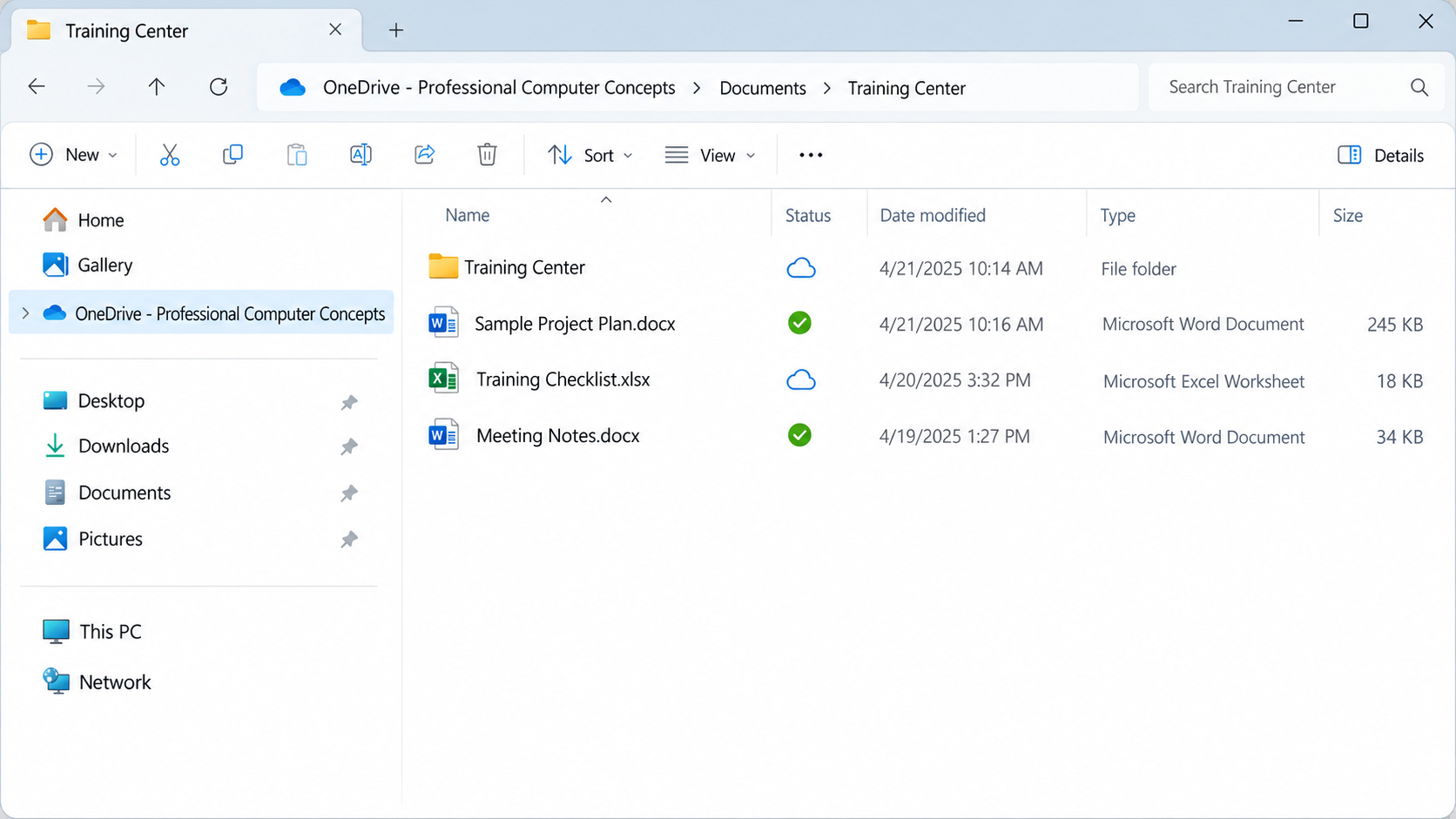
The connected SharePoint library appears in Windows File Explorer.
Understand the file status icons
- Blue cloud: The file is stored online and downloads when opened.
- Green check: The file is available on the computer.
- Solid green circle: The file is marked to remain available on the computer.
- Sync arrows: OneDrive is currently synchronizing the file.
- Red X: OneDrive encountered a synchronization problem that requires attention.
Opening, editing, renaming, moving, or deleting a connected file can change the cloud copy for everyone who uses that SharePoint library. Allow OneDrive to finish syncing before shutting down or disconnecting the computer.
Common problems and what to check
The shortcut or Sync button is missing
Your permissions, library configuration, browser, or organization settings may limit the available options. Ask your Microsoft 365 administrator before using a workaround.
The library does not appear in File Explorer
Confirm that OneDrive is running, the correct work account is signed in, and the connection finished without an error.
Z
A file is not updating
Check the OneDrive cloud icon for paused syncing or an error. Avoid creating a second local copy as a workaround because that can cause version confusion.
Security reminder: Deleting or moving a connected file can delete or move the cloud file for everyone who uses that library. Confirm the location and wait for synchronization before assuming a change is complete.
Official Microsoft guidance
- View SharePoint files in File Explorer
- Sync SharePoint and Teams files with your computer
- Work with synced files in File Explorer
Frequently asked questions
Why do my buttons or menus look different?
Microsoft changes interfaces gradually, and your license, device, application version, and organization settings can affect what appears. Use the closest matching control and contact your administrator before changing security or sharing settings.
Should I use Add shortcut to OneDrive or Sync?
Microsoft generally recommends Add shortcut to OneDrive when it is available. Shortcuts follow your account across devices. Sync connects the library to a specific computer and may still be used when required by your organization.
Can I use these steps with a personal Microsoft account?
Some steps may be similar, but this guide is written for Microsoft 365 work accounts. Business permissions, retention, sharing, and security policies may behave differently.
What should I do if I am unsure about access or sensitive data?
Stop before sharing, downloading, moving, or deleting the information. Follow your organization’s policy or contact your IT administrator.
Need help with Microsoft 365?
PCC helps Bay Area businesses configure, secure, and support Microsoft 365 so employees can work productively without creating unnecessary risk. Request a conversation with PCC.