
← View All Microsoft 365 How-To Guides
SharePoint gives your organization one secure place for shared documents, internal resources, project information, and team sites. You can access it through a web browser using your work or school Microsoft 365 account.
This guide explains how to open SharePoint, find the correct company site, and resolve the most common access problems.
Before you begin
You will need:
- Your company Microsoft 365 email address and password
- Any required multifactor authentication method
- Permission to access the SharePoint site you need
Important: Use your work account, not a personal Microsoft account. If your browser remembers multiple Microsoft accounts, confirm that the correct profile is active before continuing.
Watch: How to open SharePoint
How to access SharePoint through Microsoft 365
1. Sign in to Microsoft 365
Open a browser and go to m365.cloud.microsoft. Enter your work email address, select Next, and complete the sign-in process.

2. Open the Microsoft 365 home page
After signing in, you will arrive at the Microsoft 365 or Microsoft Copilot home page. The exact appearance may vary based on your organization’s Microsoft 365 licensing and settings.

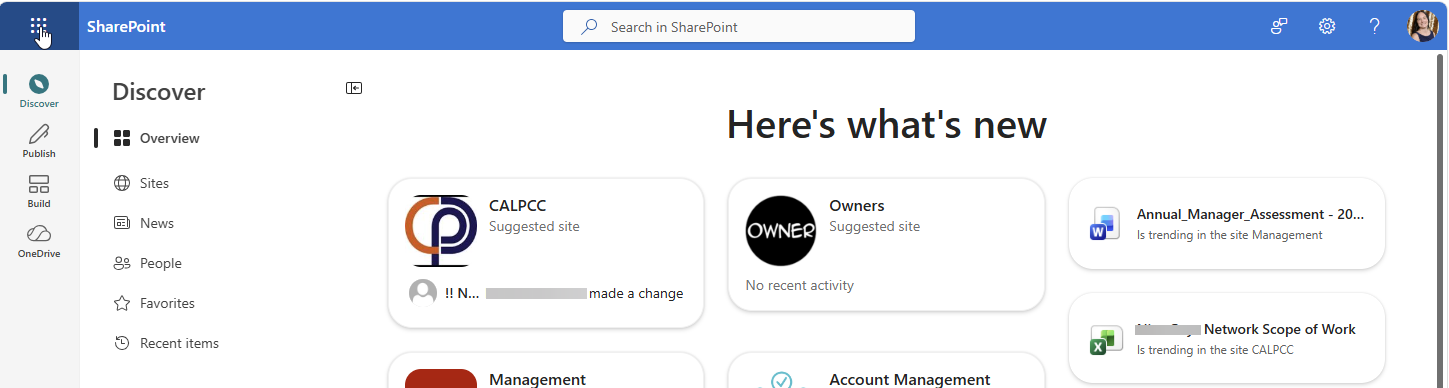
3. Select SharePoint from the app launcher
Select the nine-dot App launcher in the upper-left corner, then select SharePoint. If SharePoint is not displayed, select More apps or search for “SharePoint.”

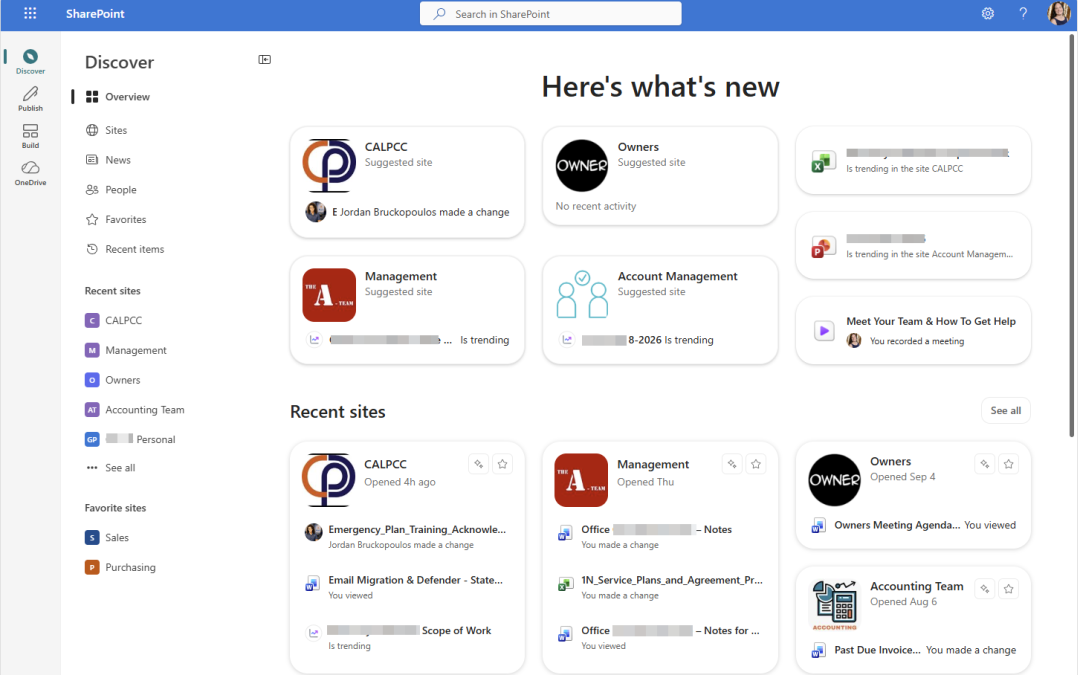
4. Review the SharePoint start page
The SharePoint start page may show frequently visited sites, suggested sites, favorites, recent items, and company news. You can also use the search box near the top of the page.
5. Search for your company site
Enter the company, department, project, or site name in the SharePoint search box. If search categories are displayed, select Sites to narrow the results.

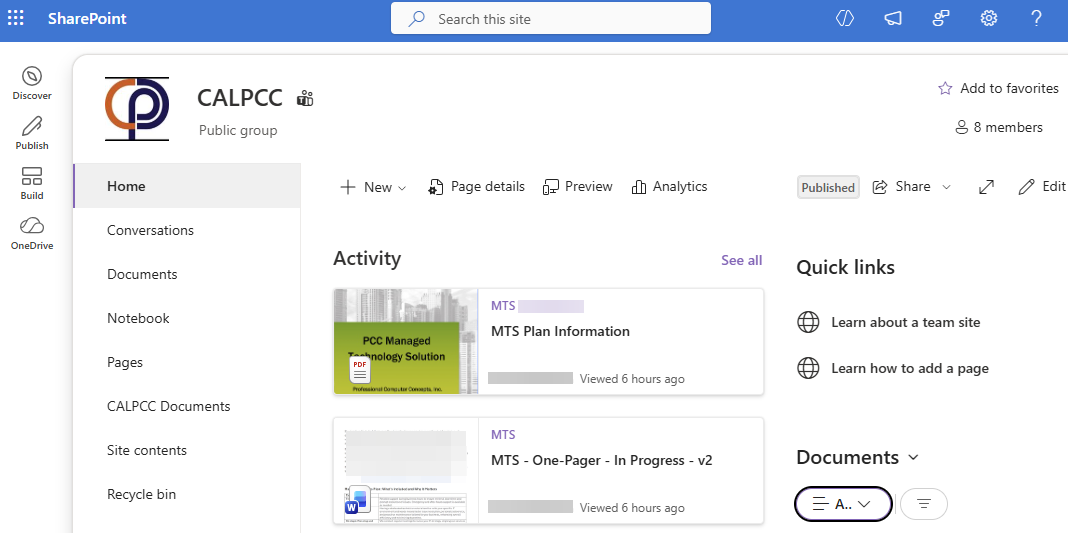
6. Open the company site
Select the site name to open it. Confirm that the company or department name is correct, then use the site navigation to locate documents, pages, lists, or other resources.
How to access SharePoint with a direct link
If a coworker or your IT provider gave you a SharePoint link, select the link or paste it into your browser. A typical address looks similar to:
https://yourcompany.sharepoint.com/sites/sitename
If Microsoft asks you to sign in, use the work account that was granted access. Save the site as a browser favorite only after confirming that it is the correct location.
What to do if you cannot access the site
Confirm that you are using the correct account
Select your profile picture in the upper-right corner and verify the email address. If the wrong account is active, sign out or open a separate browser profile for your work account.
Request access
Finding a site does not automatically give you permission to open it. If you receive an “Access denied,” “Sorry, you don’t have access,” or “You need permission” message, select Request Access if that option is available.

If no request button appears, contact the site owner or your IT support team. Provide the site address and the work email account you are using.
Search for the site again
Search results are personalized. Another employee may see sites that you cannot see because their account has different permissions.
Use a separate browser profile
If you work with more than one Microsoft 365 organization, create a separate Microsoft Edge or Chrome profile for each account. This reduces sign-in loops and prevents one organization’s account from opening another organization’s SharePoint link.
Do not request access through an unexpected link
Only sign in to SharePoint through a trusted company link or an official Microsoft address. If an unexpected email asks you to open a document or enter your Microsoft 365 credentials, verify the message before proceeding. Visit PCC’s Microsoft Security Learning Center for additional guidance.
Frequently asked questions
Do I need to install SharePoint?
No. SharePoint is primarily a browser-based service. You can access it through a supported web browser. Your organization may also synchronize selected document libraries to File Explorer through OneDrive.
Why is SharePoint missing from the app launcher?
Your organization may have changed the available navigation, or your account may not have a license that includes SharePoint. Search under More apps. If it is still missing, contact your IT administrator.
Can I access SharePoint from my phone?
Yes. You can use a mobile browser or Microsoft’s supported mobile experience. Your organization’s security policies may require Microsoft Authenticator, device enrollment, or another verification step.
Why can someone else access a site that I cannot?
SharePoint access is based on permissions assigned to individual users and groups. Another employee may belong to a group that has access to the site while your account does not.
Need help accessing Microsoft 365?
If your organization needs help organizing SharePoint, controlling access, or making Microsoft 365 easier for employees to use, request a conversation with PCC.