
← View All Microsoft 365 How-To Guides
Microsoft 365 Copilot can help you create a first draft, summarize a long email conversation, and improve the clarity or tone of a message. It can save time, but it does not replace your judgment. Review every result before you send or act on it.
Availability note: Copilot features vary by Microsoft 365 license, Outlook version, device, and organization settings. If the options in this guide are missing, contact your Microsoft 365 administrator.
Before you use Copilot in Outlook
- Confirm that you are signed in with the correct work account.
- Follow your organization’s rules for confidential, personal, financial, and regulated information.
- Do not assume that Copilot’s summary or draft is complete or accurate.
- Verify names, dates, commitments, dollar amounts, links, recipients, and attachments.
How to draft an email with Copilot
1. Start a new email
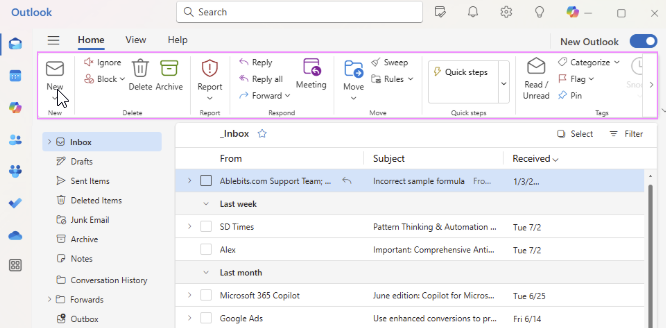
Open Outlook and select New mail.
2. Open Draft with Copilot
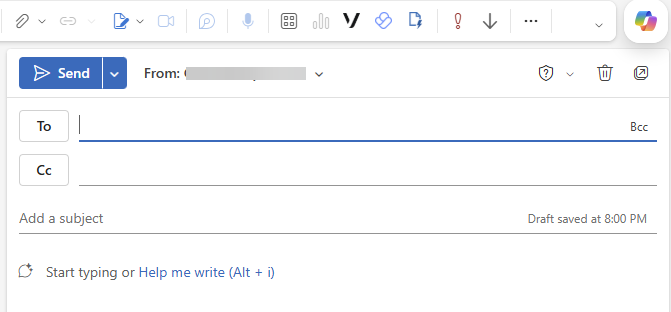
In the message window, select the Copilot option and choose Draft with Copilot. The wording and location may vary by Outlook version.
3. Describe the email you want
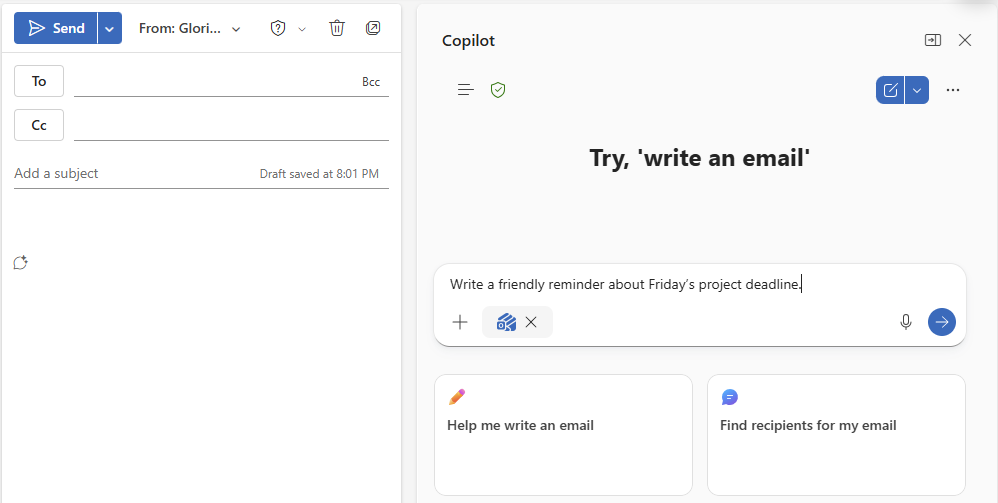
Tell Copilot who the message is for, what it should accomplish, which facts it must include, the desired tone, and what action the recipient should take.
4. Generate and review the draft
Select Generate. Read the resulting draft and decide whether to keep it, revise it yourself, or ask Copilot to create another version.
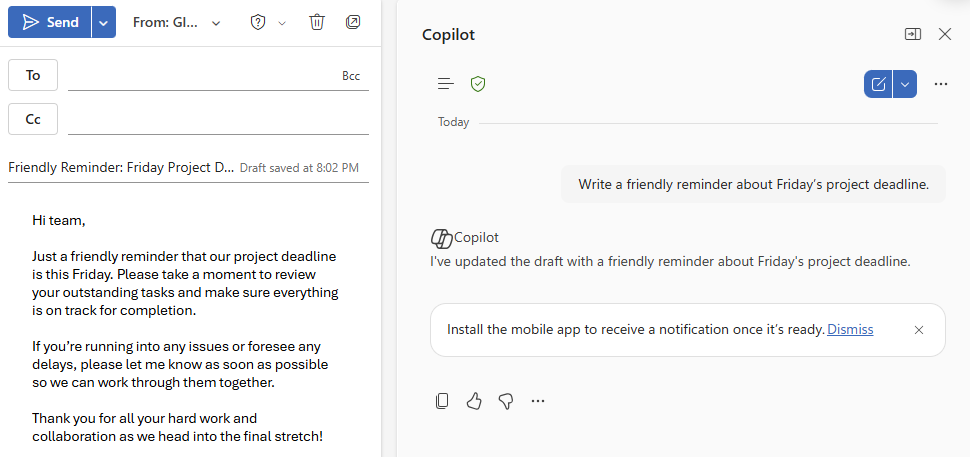
5. Complete a human review
Edit the message so it accurately reflects what you know and what you are authorized to promise. Confirm the recipient, subject, names, dates, dollar amounts, links, commitments, and attachments before selecting Send.
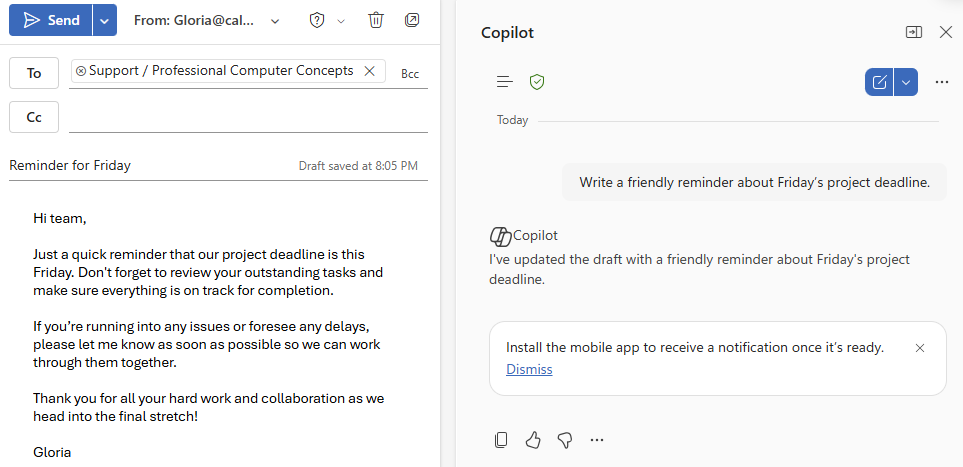
Watch: Draft an email with Copilot
A practical Copilot prompt for drafting email
Try this structure:
Draft a concise email to [recipient or role]. Explain [situation]. Include [important facts]. Ask the reader to [desired action] by [date, if applicable]. Use a professional and direct tone. Do not add facts or commitments that I did not provide.
Example:
Draft a concise email to a client contact. Explain that the planned maintenance will begin Friday at 7:00 p.m. and should be complete by 9:00 p.m. Ask them to save their work and log off by 6:45 p.m. Use a calm, professional tone. Do not add technical details or guarantees.
How to summarize a long email conversation
- Open the email conversation you want to review.
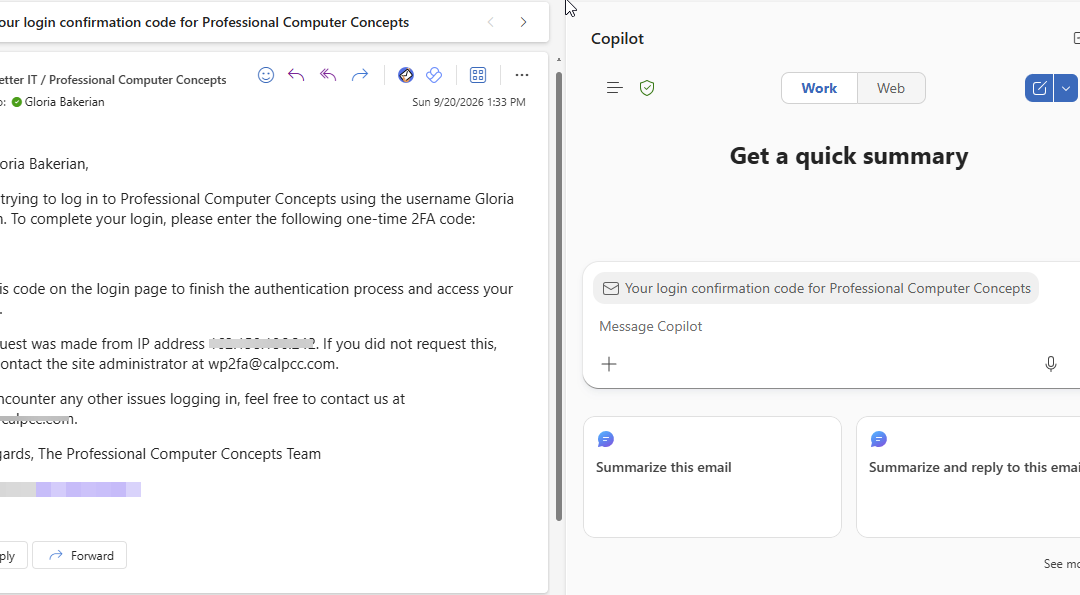
- Select Summary by Copilot or Summarize near the top of the conversation.
- Wait while Copilot identifies the main points in the conversation.
- Read the generated summary.
- Use any numbered references or citations to open the supporting messages, if available.
- Review the original messages before relying on an important decision, deadline, approval, or financial instruction.
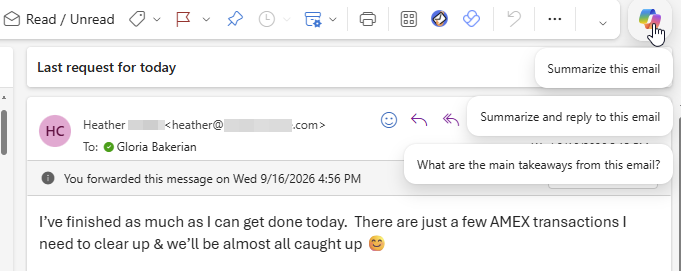
Important: A summary is a shortcut for understanding a conversation. It is not proof that the information in the conversation is correct or that a request is legitimate.
What Copilot is useful for in Outlook
- Creating a first draft from your notes
- Shortening a message that has become too long
- Adjusting tone for a client, coworker, or executive audience
- Identifying key points in a long conversation
- Finding stated action items or unanswered questions
What Copilot should not decide for you
- Whether a payment or banking change is legitimate
- Whether an email sender is genuine
- Whether a legal, HR, or regulatory statement is correct
- Whether you have authority to make a promise or commitment
- Whether sensitive information should be shared
Security warning: Never use an AI-generated summary as verification for a payment request, bank-account change, password request, or unusual executive instruction. Review PCC’s Business Email Compromise guidance and verify high-risk requests through a known phone number or another trusted method.
How to get a better draft
Give Copilot specific instructions instead of simply asking it to “write an email.” Include:
- Audience: Who will receive the message?
- Purpose: What should the message accomplish?
- Facts: What information must be included?
- Action: What should the recipient do next?
- Tone: Should it be direct, warm, formal, or brief?
- Boundaries: What must Copilot avoid inventing or promising?
Common problems
The Copilot button is missing
Your account may not have the required license, your organization may have disabled the feature, or your Outlook version may not support it. Update Outlook, confirm that the correct account is active, and contact your Microsoft 365 administrator if the option remains unavailable.
The summary missed an important detail
Copilot-generated summaries can omit context or misunderstand a statement. Read the relevant original messages, especially when the conversation contains approvals, deadlines, costs, or conflicting instructions.
The draft sounds generic
Add more context and specify the tone, audience, key facts, and desired action. Then edit the result so it sounds like you and accurately reflects the relationship.
Copilot included an incorrect fact
Remove or correct the statement before sending the email. Copilot can generate plausible-sounding information that was not included in your prompt or source material.
Frequently asked questions
Does Copilot send the email automatically?
No. Copilot creates or revises the draft, but you remain responsible for reviewing the message and selecting Send.
Can Copilot summarize every email?
Availability depends on the message, Outlook version, license, and organization settings. Some protected or encrypted content may have additional restrictions.
Should I paste confidential information into a prompt?
Only use information permitted by your organization’s AI and data-handling policies. When uncertain, remove unnecessary sensitive details, consult your IT administrator, or review PCC’s business technology and AI resources.
Can Copilot verify that an email sender is legitimate?
No. Copilot can summarize the contents of a message, but it does not prove the sender’s identity or confirm that a payment, password, or account-change request is legitimate.
Need help adopting Microsoft 365 Copilot safely?
PCC helps businesses deploy Microsoft 365 Copilot with appropriate licensing, security, permissions, governance, and practical employee guidance. Request a conversation with PCC.