
← View All Microsoft 365 How-To Guides
Microsoft 365 Copilot can help you move past a blank page, organize ideas, and rewrite existing text. It can accelerate the first draft, but you remain responsible for the accuracy, tone, and commitments in the final document.
Availability note: Copilot features depend on your Microsoft 365 license, Word version, device, and organization settings. Button names and locations may vary as Microsoft updates the experience.
Before you begin
- Sign in to Word with the correct work account.
- Confirm that Copilot is available in Word.
- Gather the facts, source material, audience, and desired outcome.
- Remove information that your organization does not permit you to use with AI.
How to create a first draft with Copilot in Word
-
Open Word and create a blank document or open the document where you want to add content.

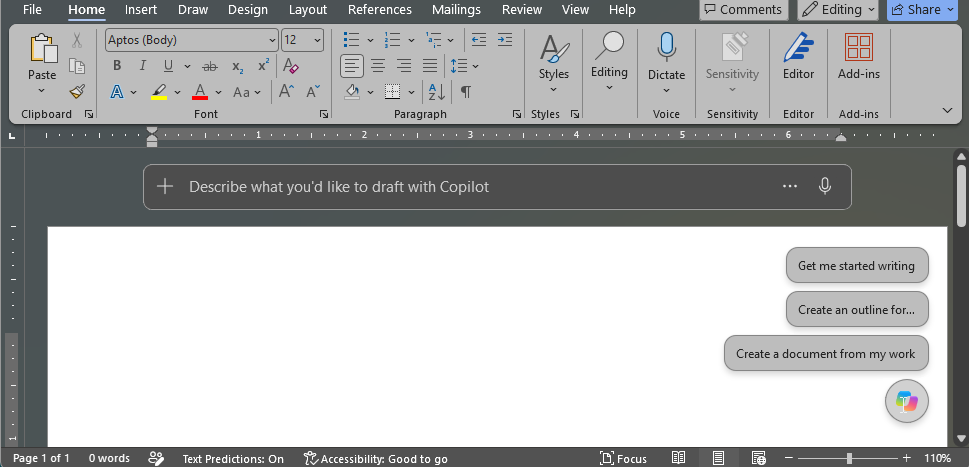
Open a Word document and locate the Copilot button. -
Select the Copilot button or open the Copilot pane. The exact location may vary.

Open the Copilot pane to begin working with your document. -
Enter a prompt that describes the document type, audience, purpose, required facts, tone, and desired structure.

Give Copilot a specific prompt with the audience, purpose, facts, and desired tone. -
If appropriate, reference an approved work file that contains information Copilot should use. Confirm that you are allowed to use that file and that its permissions are correct.
-
Review the generated draft. Keep it, discard it, or continue refining it with a follow-up prompt.
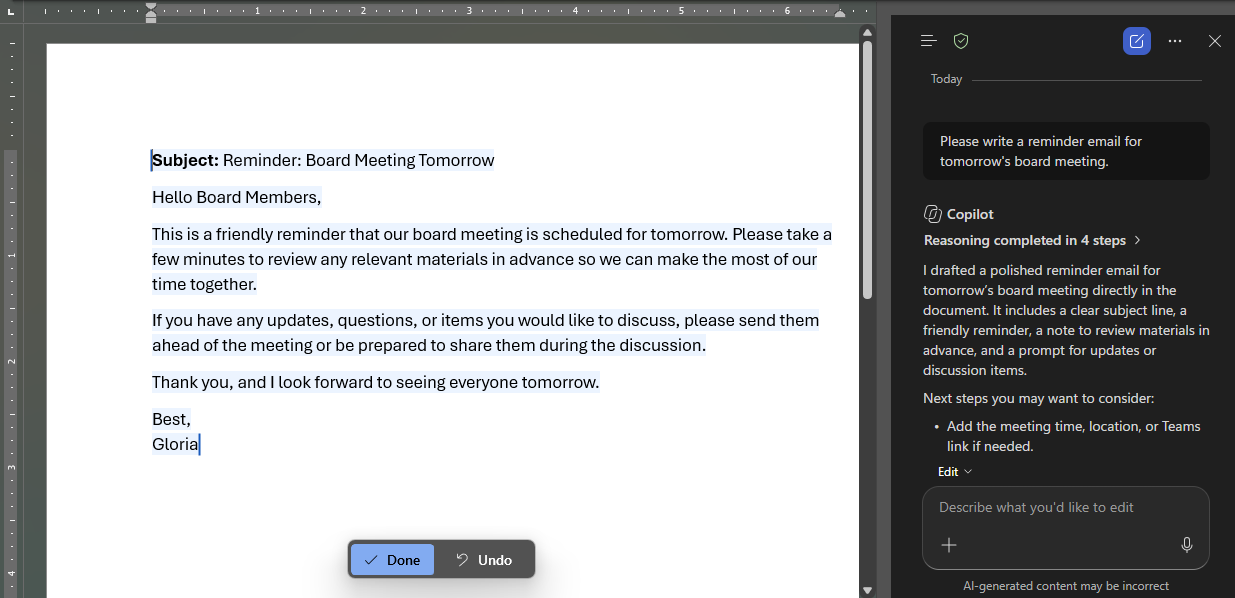
Review the generated draft before keeping or revising it.
A practical prompt for drafting a document
Draft a concise [document type] for [audience]. Explain [purpose]. Include only these facts: [facts]. Organize it with [sections or bullets]. Use a [tone] tone. End with [desired next step]. Do not invent dates, costs, commitments, or technical details.
How to rewrite selected text
-
Select the paragraph or section you want to improve.
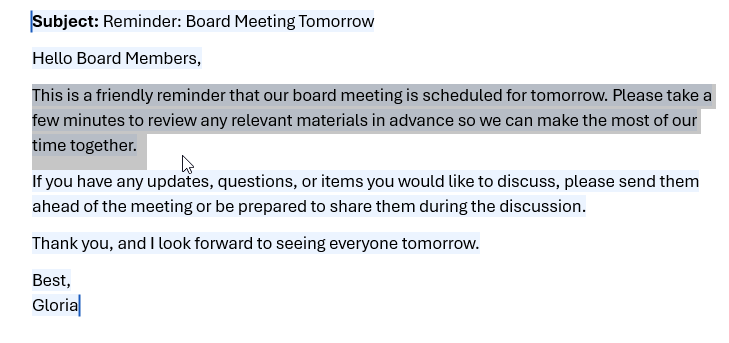
Select only the text you want Copilot to rewrite. -
Select the Copilot option and choose Auto Rewrite, Rewrite, or the closest available option.
-
Review the suggested versions. Use the arrows to compare alternatives when they are available.

Compare Copilot’s rewrite suggestions before choosing one. -
Select Replace to substitute the original, Insert below to preserve both versions, or Regenerate to request another option.
-
Edit the result yourself and verify every important fact.

Edit the final version yourself and verify every important detail.
What to check before using the document
- Names, dates, prices, deadlines, and contact information
- Promises, guarantees, or statements about what PCC or another company will do
- Technical, legal, HR, financial, or regulatory claims
- Links, references, quotations, and cited sources
- Tone and whether the writing sounds appropriate for the audience
Security reminder: Copilot can help you write, but it does not decide whether information should be disclosed. Follow your organization’s AI and data-handling rules.
Official Microsoft guidance
- Welcome to Copilot in Word
- Rewrite text with Copilot in Word
- Get started writing prompts in Microsoft 365 Copilot
Frequently asked questions
Why is the Copilot button missing?
Your license may not include the feature, your organization may have disabled it, or your Word version may need an update. Confirm that the correct work account is active before contacting your administrator.
Can Copilot use another document as a source?
Some Word experiences allow you to reference approved work files. Availability varies. Copilot should not give you access to files you do not already have permission to use.
Does Copilot save a separate Word file?
Copilot generally drafts or edits content in the current document. Save and name the document using your organization’s normal process.
Need help using Copilot safely?
PCC helps businesses configure Microsoft 365 Copilot, establish practical AI rules, and train employees to review AI-generated work. Request a conversation with PCC.