

← View All Microsoft 365 How-To Guides
Microsoft Teams lets you schedule an online meeting in advance or start one immediately. Scheduled meetings are best when attendees need an invitation and calendar reminder. Meet now is useful for an unplanned conversation.
Before you begin
Make sure you are signed in to Teams with your work account. You should also know:
- The meeting date, time, and expected duration
- The email addresses of anyone outside your organization
- Whether attendees should be able to present, record, or bypass the lobby
Security reminder: Use your company Teams account and verify external attendee addresses before sending the invitation.
How to schedule a Teams meeting
1. Open the Teams calendar
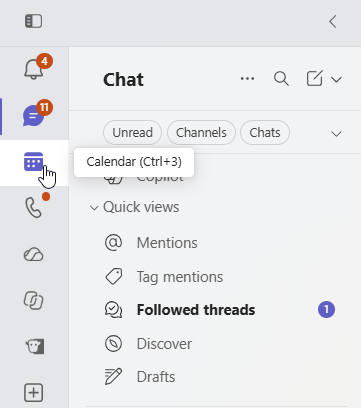
Open Microsoft Teams and select Calendar from the left navigation.
2. Create a new meeting
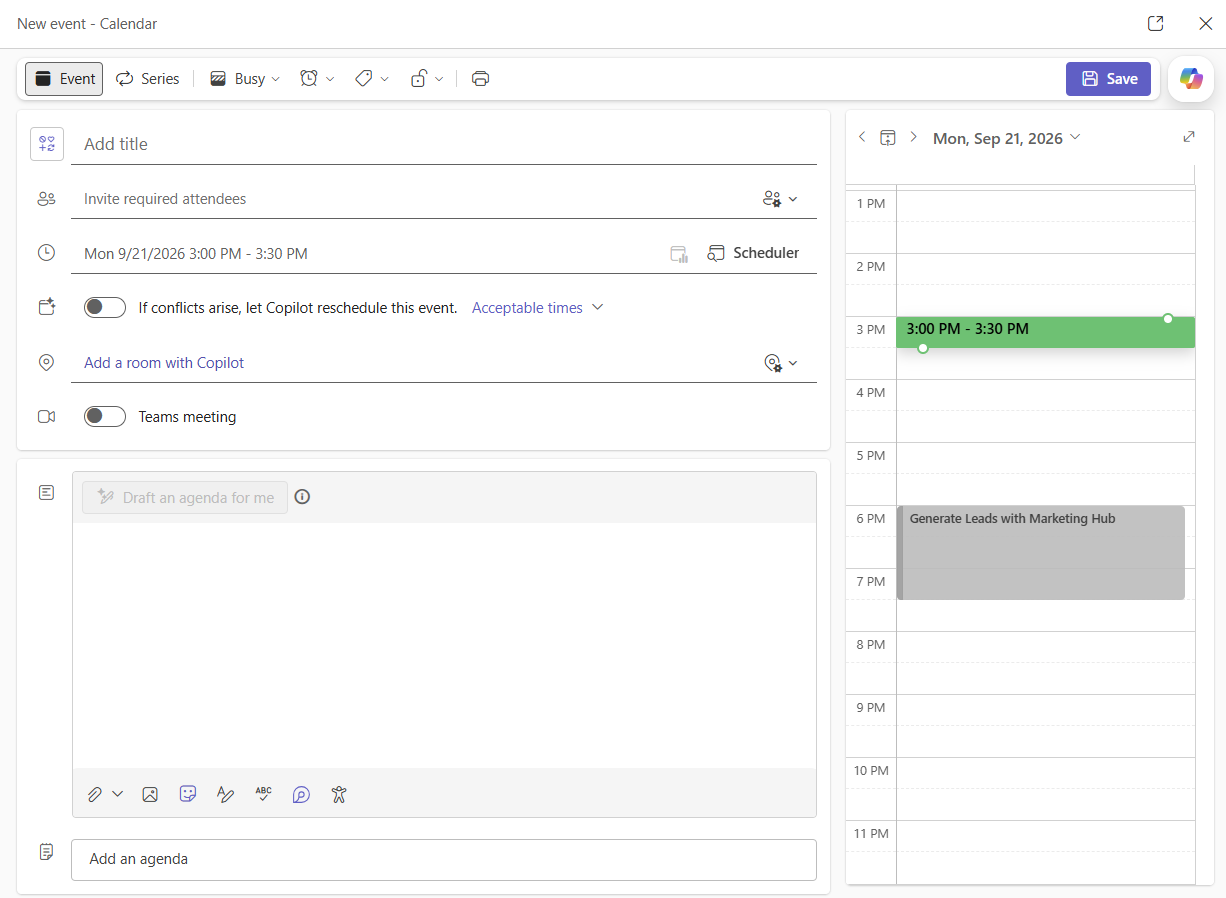
Select New meeting near the upper-right corner of the calendar.
3. Add the meeting information
Enter a clear meeting title and add the required attendees by name or email address. Select the date, start time, and end time. If the meeting repeats, select the recurrence option and choose the appropriate schedule.
Add an agenda or a short explanation of what attendees should prepare. If you include links to documents, confirm that invited attendees have permission to open them. See our guide to accessing a company SharePoint site for additional information about SharePoint access.
4. Send the invitation
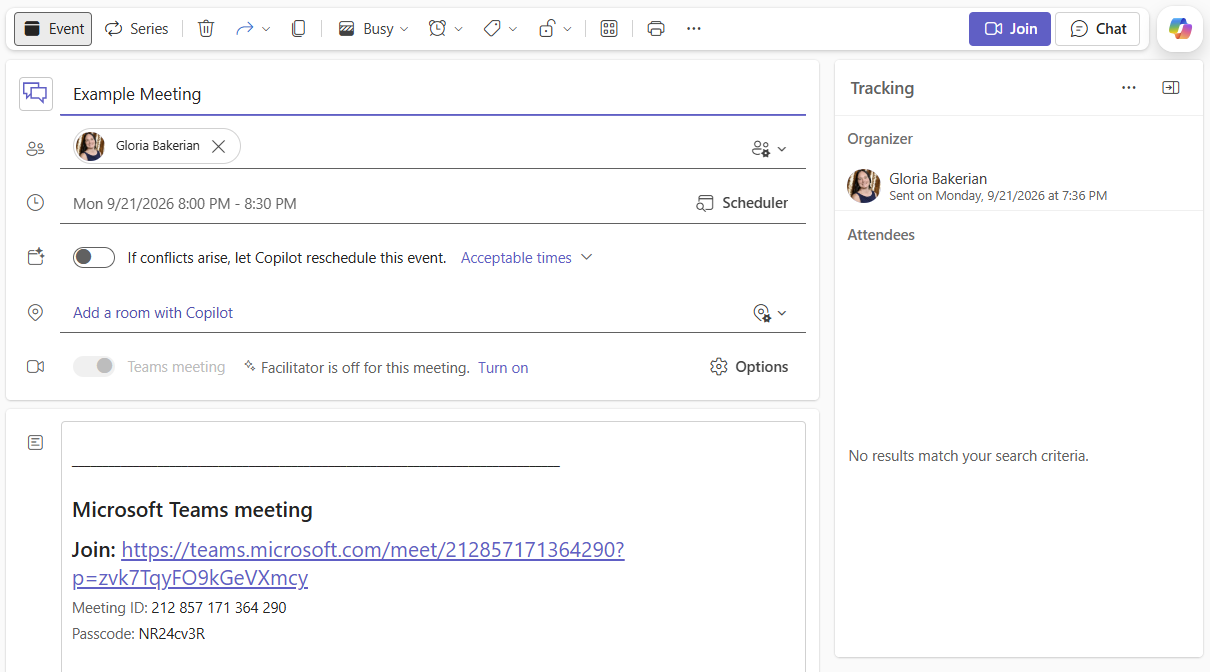
Review the meeting information, then select Send or Save. Teams adds the meeting to the calendar and sends invitations to the attendees.
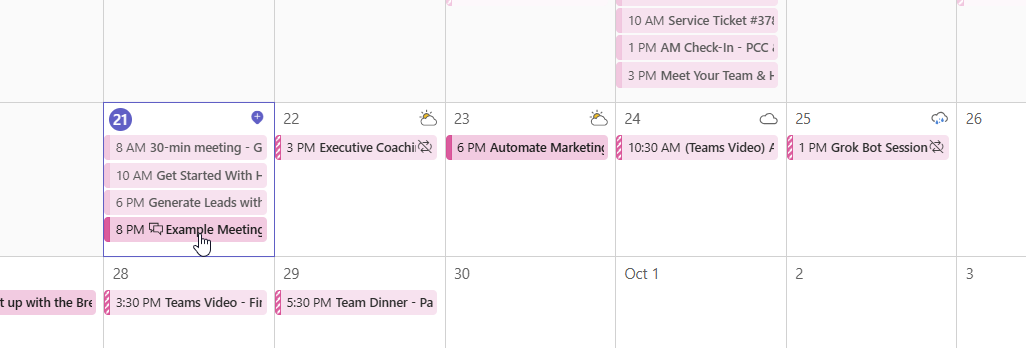
Open the saved meeting from the calendar to confirm that the date, time, attendees and meeting link are correct.
Review the meeting options
Meeting options control how attendees enter and participate. Open the scheduled meeting and select Meeting options. The exact location may vary depending on your Teams version and company settings.
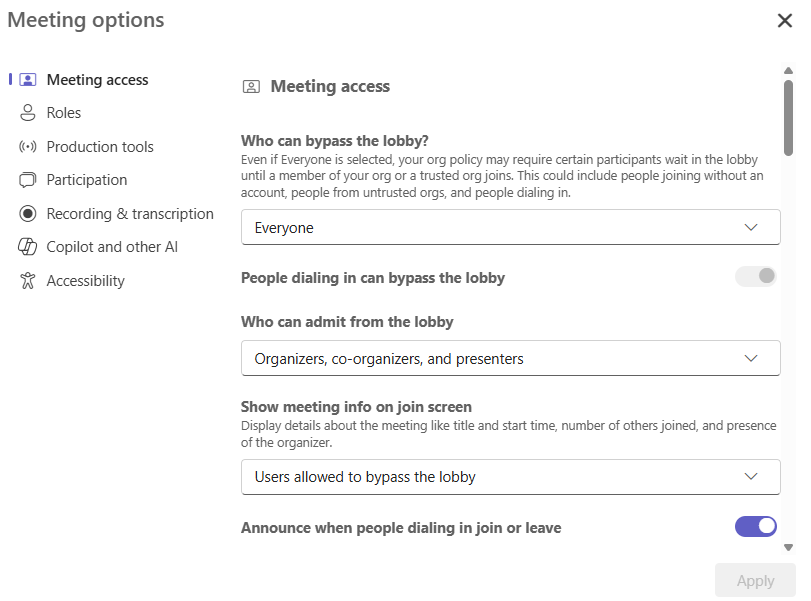
Who can bypass the lobby?
For routine internal meetings, your organization’s default may be appropriate. For sensitive or external meetings, use the lobby so the organizer can decide who enters.
Who can present?
Avoid allowing everyone to present unless the meeting requires it. Restricting presenter access reduces accidental screen sharing and meeting disruptions.
Should the meeting be recorded?
Record only when there is a legitimate business reason and attendees have been notified. Recordings, transcripts, Copilot summaries and AI-generated meeting notes may contain confidential information. They should follow your organization’s retention, privacy and Microsoft security requirements.
How to start a scheduled Teams meeting
- Open Calendar in Teams.
- Select the scheduled meeting.
- Select Join.
- Check your camera, microphone, speaker and background.
- Select Join now.
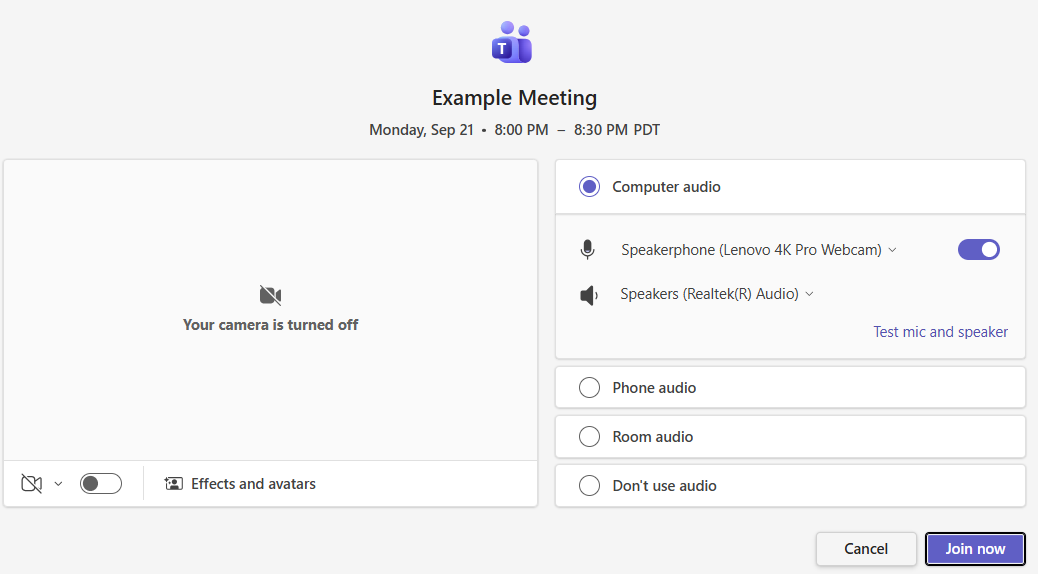
Good practice: Join a few minutes early when presenting or meeting with clients. This gives you time to test your audio and open any files you plan to share.
Using the meeting controls
After joining, use the meeting toolbar to control your microphone and camera, open the participant list, use meeting chat, share content, or leave the meeting.

Keep your microphone muted when you are not speaking, especially when background noise may distract other attendees.
How to start an instant meeting with Meet now
Use Meet now when you need to begin a meeting immediately rather than schedule it for later.
- Open Calendar in Teams.
- Select Meet now in the upper-right corner.
- Enter a useful meeting name.
- Select Get a link to share if you need to invite others using a link.
- Select Start meeting.
- Check your audio and video, then select Join now.
Do not post a meeting link publicly. Send it only to the people who should attend. Review the lobby settings when inviting anyone outside your organization.
Common Teams meeting problems
The Calendar button is missing
Your Teams account, license or organization policy may not include meeting scheduling. Try scheduling through Outlook. If the calendar remains unavailable, contact your IT administrator.
Attendees did not receive the invitation
Confirm that the meeting was sent and not left as a draft. Check each attendee’s email address and ask external attendees to review their junk folder.
Your microphone or camera is not working
Open the device settings from the pre-join screen and select the correct microphone, speaker and camera. Close other applications that may be using the device. Confirm that Windows or macOS allows Teams to access the microphone and camera.
The Join button is missing
Confirm that you are signed in with the account that received the meeting invitation. If you have multiple Microsoft accounts, open the invitation in a separate browser profile or switch to the correct Teams account.
Frequently asked questions
Can someone without a Teams account join?
Often, yes. External guests can generally use the meeting link and join through a supported browser. The organizer’s company policies may limit anonymous or external access.
Can I schedule a Teams meeting from Outlook?
Yes. In supported Outlook versions, create a calendar event and turn on the Teams meeting option. The exact button location varies by Outlook version and organizational configuration.
What is the difference between Meet now and New meeting?
Meet now starts an immediate meeting. New meeting creates a scheduled calendar event with invitations and reminders.
Can I change the meeting options after sending the invitation?
Yes. Open the scheduled meeting and select Meeting options. Changes may be limited by your organization’s Teams policies.
Need help with Microsoft Teams?
PCC helps businesses configure Microsoft Teams, improve meeting security and make Microsoft 365 easier for employees to use. Request a conversation with PCC.