

← View All Microsoft 365 How-To Guides
OneDrive files are private until you share them. The safest choice for business information is usually to share with named people, grant only the permission they need, and review access after the work is complete.
Interface note: Microsoft 365 buttons and menus can vary by license, application version, device, organization settings, and rollout. Use the closest available option and contact your administrator when a required control is unavailable.
Before you begin
- Confirm that OneDrive is the right location for the file. Team-owned content may belong in SharePoint instead.
- Remove information the recipient does not need.
- Confirm the recipient’s email address using a trusted source.
- Decide whether the recipient needs to view or edit the file.
How to Share OneDrive Files Safely
-
Select the file. Open OneDrive using your approved work account. Select the file or folder you want to share, and then choose Share.
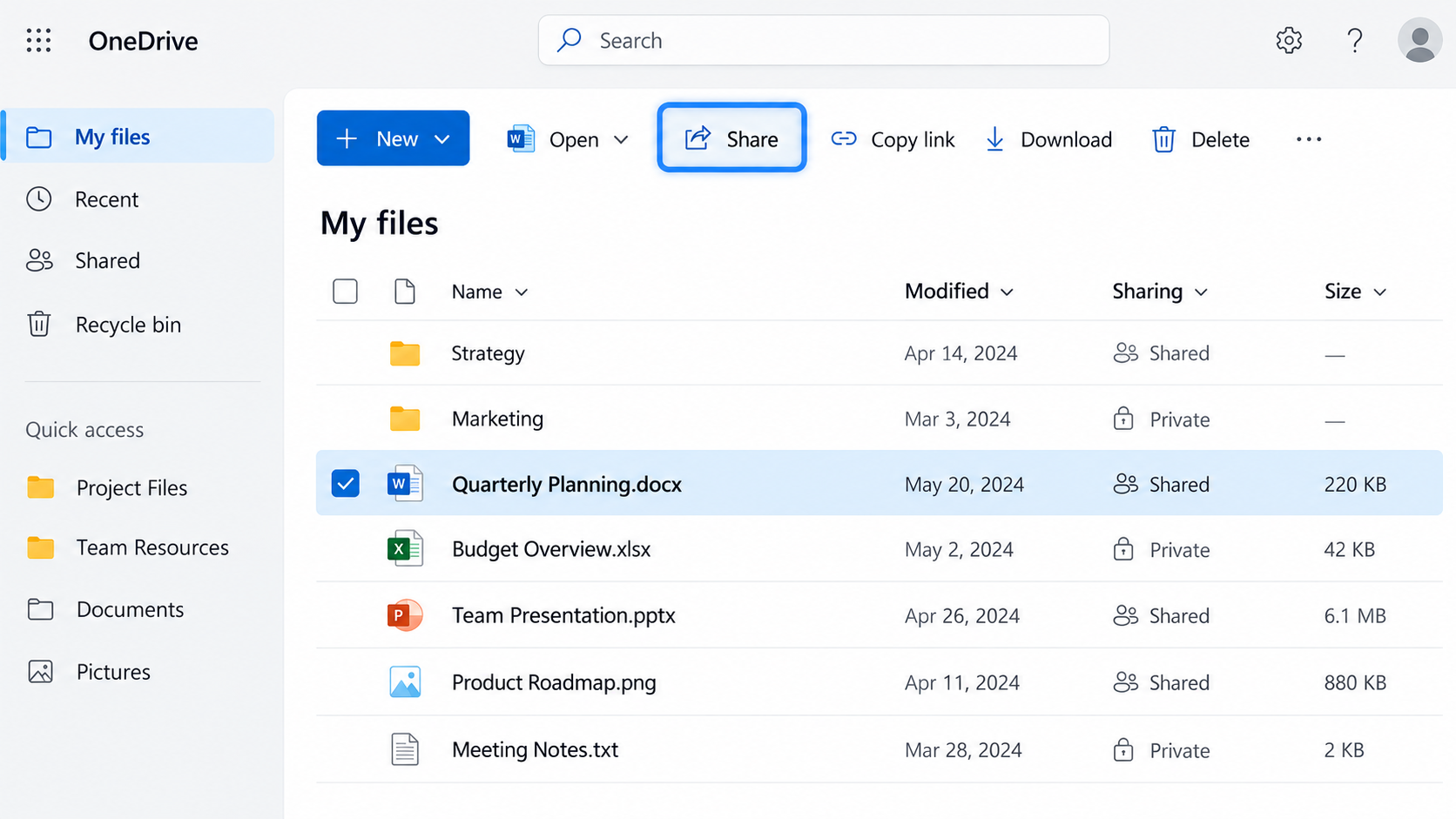
Select the correct OneDrive file and choose Share. -
Open the sharing settings. Before entering a recipient or copying a link, select the permissions shown near the top of the sharing window. This opens the link settings.
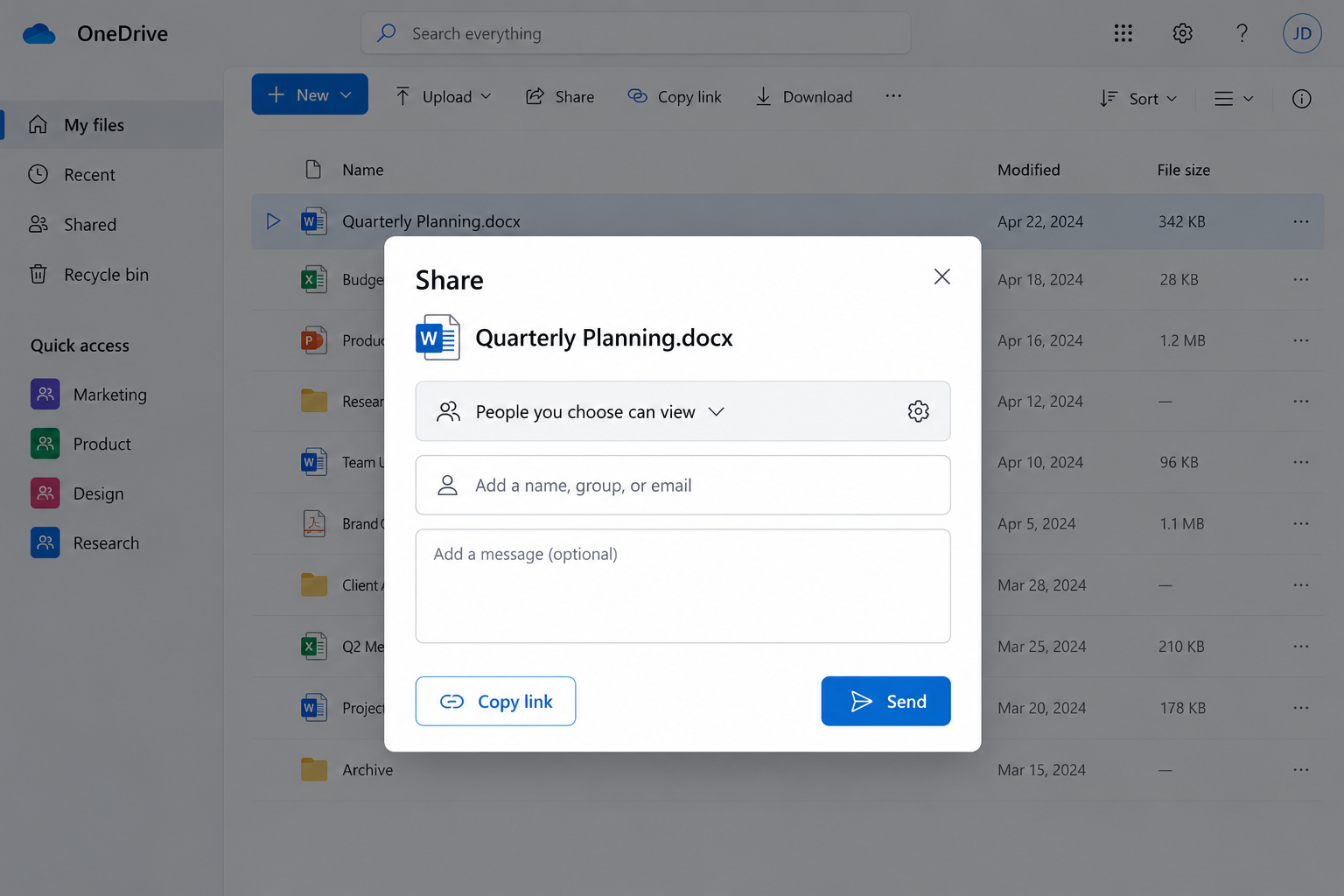
Review the sharing permissions before entering a recipient or copying the link. -
Choose the safest appropriate permissions. Select Specific people when available. Choose Can view unless the recipient must edit the file. Depending on your organization’s settings, you may also be able to block downloads or set an expiration date.
Avoid Anyone links for business information unless your organization has specifically approved that sharing method.
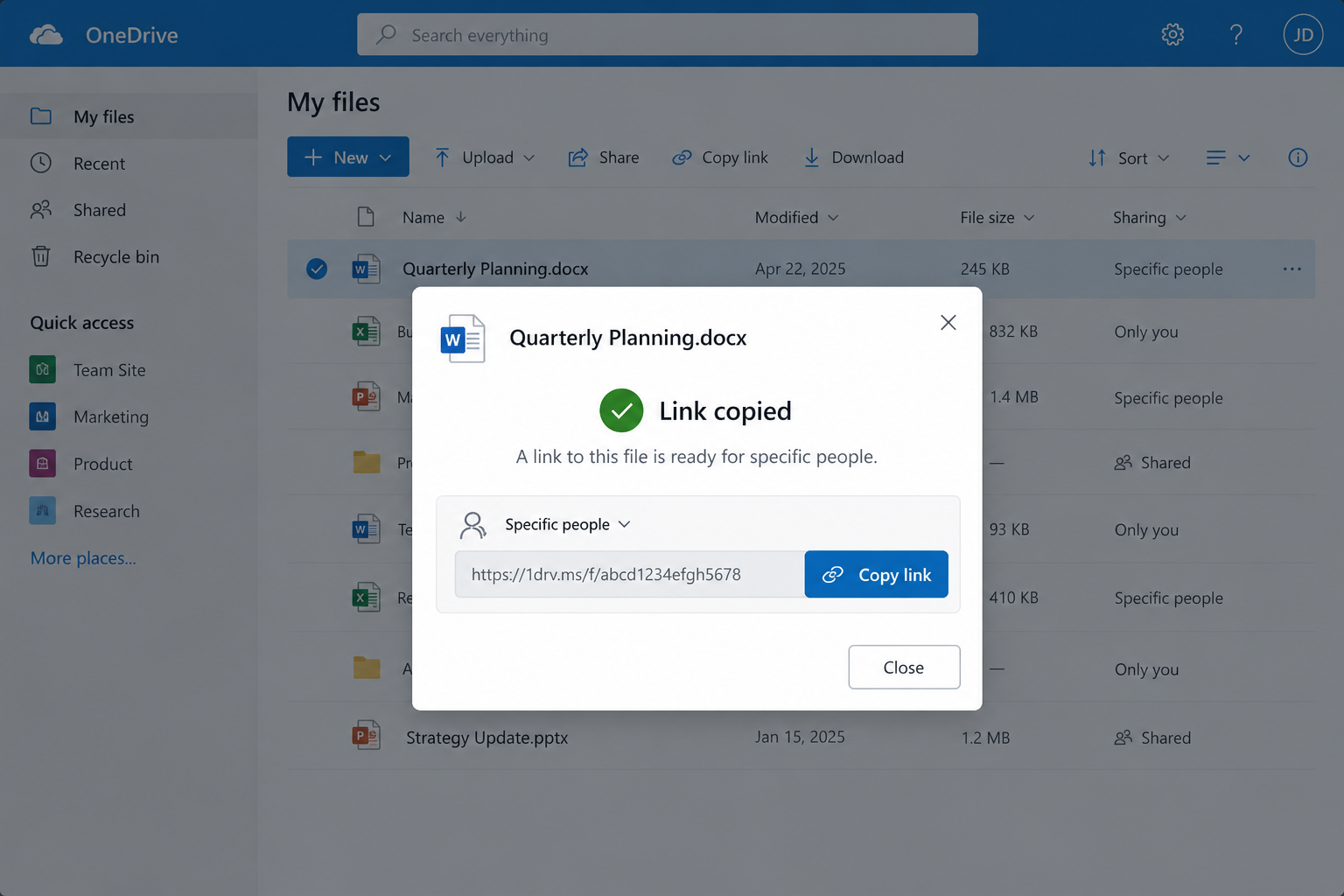
Restrict the link to specific people and grant only the access they need. -
Enter and verify the recipients. Enter the intended recipient’s name or email address. Review the displayed identity carefully before sending the invitation.
You can also select Copy link after configuring the permissions. Send the copied link only to the approved recipient using an appropriate business communication method.
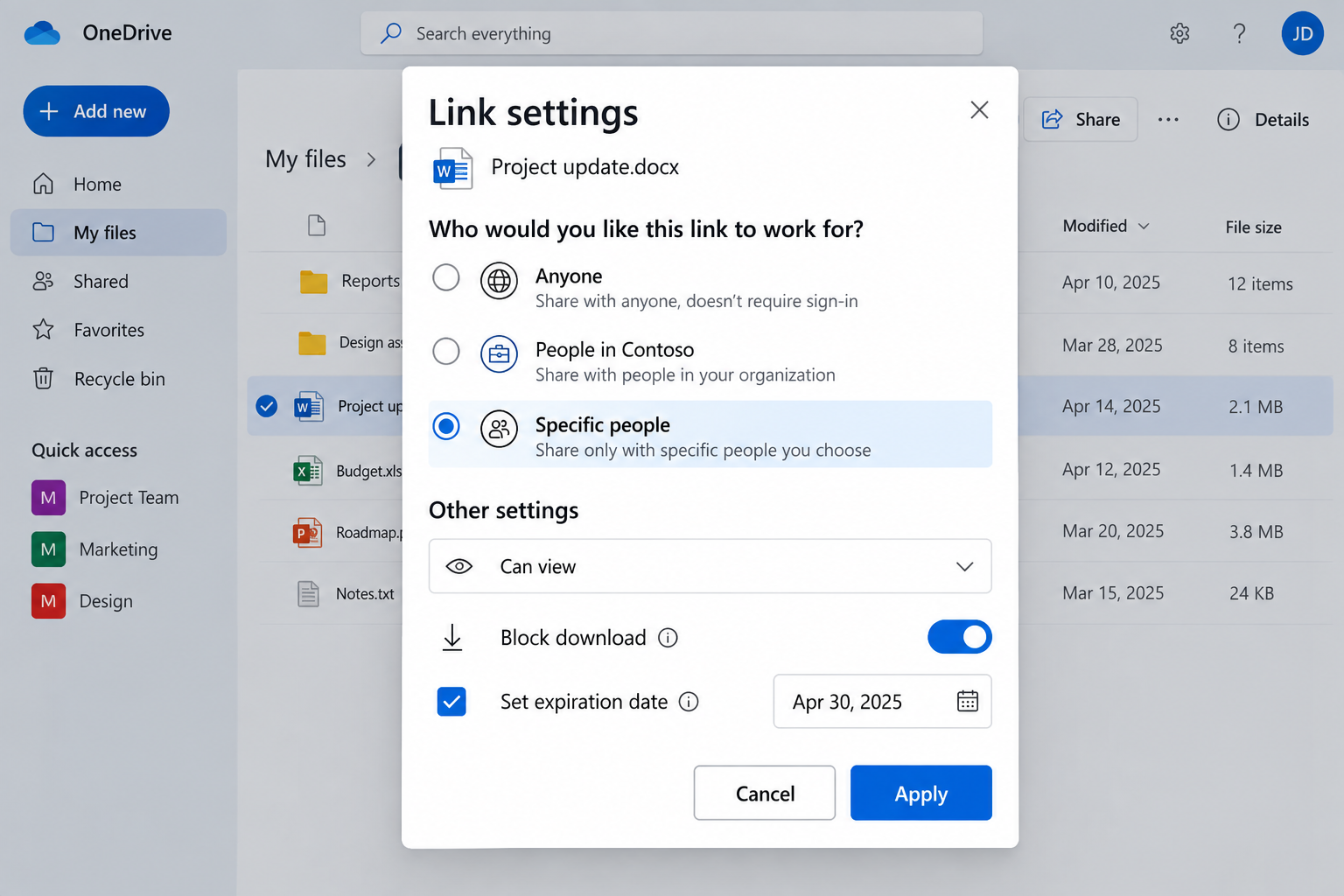
Confirm that the copied link is restricted to the intended people. -
Review access after sharing. Use Manage access or the file’s sharing details to confirm which people, groups, and links can reach the file. Remove access when it is no longer required.
Safe OneDrive sharing checklist
- Verify that you selected the correct file or folder.
- Use Specific people instead of Anyone whenever possible.
- Grant view-only access unless editing is necessary.
- Consider blocking downloads for sensitive material.
- Use an expiration date when access is temporary.
- Double-check the recipient’s identity before sending.
- Review and remove access when the work is complete.
Common problems and what to check
Specific people is unavailable
Your organization may restrict sharing methods. Do not switch to a broader link without confirming the policy with your Microsoft 365 administrator.
The recipient cannot open the file
Confirm that the invitation was sent to the exact account the recipient is using and that external sharing is permitted by your organization.
The recipient can view but cannot edit
Check the link settings to determine whether the recipient was given view-only permission. Grant editing access only when collaboration requires it.
The file is team-owned
Move or copy the file to the approved SharePoint team location rather than relying on one employee’s OneDrive for long-term access.
Security reminder: A sharing link can expose current and future content if you share an entire folder. Verify the scope, recipients, and permission level before sending it.
Official Microsoft guidance
- Share files and folders in Microsoft OneDrive
- Manage sharing and permissions in OneDrive and SharePoint
- See who a file is shared with
Frequently asked questions
Why do my buttons or menus look different?
Microsoft changes interfaces gradually, and your license, device, application version, and organization settings can affect what appears. Use the closest matching control and contact your administrator before changing security or sharing settings.
Should I allow the recipient to edit?
Use view-only permission unless the recipient needs to change the file. Edit permission may allow the recipient to alter the shared content.
Is an Anyone link safe?
An Anyone link can usually be opened without signing in and may be forwarded to other people. Avoid this option for business information unless your organization has approved it.
Can I use these steps with a personal Microsoft account?
Some steps may be similar, but this guide is written for Microsoft 365 work accounts. Business permissions, retention, sharing, and security policies may behave differently.
What should I do if I am unsure about access or sensitive data?
Stop before sharing or copying the link. Follow your organization’s policy or contact your IT administrator.
Need help with Microsoft 365?
PCC helps Bay Area businesses configure, secure, and support Microsoft 365 so employees can work productively without creating unnecessary risk. Request a conversation with PCC.