

← View All Microsoft 365 How-To Guides
Microsoft Teams lets you present your entire screen, one application window, a PowerPoint file, or a whiteboard. Choosing the narrowest useful option reduces the chance of displaying private notifications or unrelated work.
Interface note: Microsoft 365 buttons and menus can vary by license, application version, device, organization settings, and rollout. Use the closest available option and contact your administrator when a required control is unavailable.
Before you begin
- Close confidential files, personal tabs, and unrelated applications.
- Turn off or suppress desktop notifications before sharing.
- Open the presentation or application you plan to show.
- Join the meeting and confirm that the organizer allows you to present.
How to Share Your Screen in a Microsoft Teams Meeting
-
Select Share. In the meeting controls, select Share. Teams will display the content types available on your device.

Select Share from the Microsoft Teams meeting controls. -
Choose what to present. Select Screen only when participants must see everything you do. Select Window when one application is sufficient. You may also see options for PowerPoint Live or Microsoft Whiteboard.
Turn on Include sound only when participants need to hear audio from a video or application. Other computer sounds may also be heard.
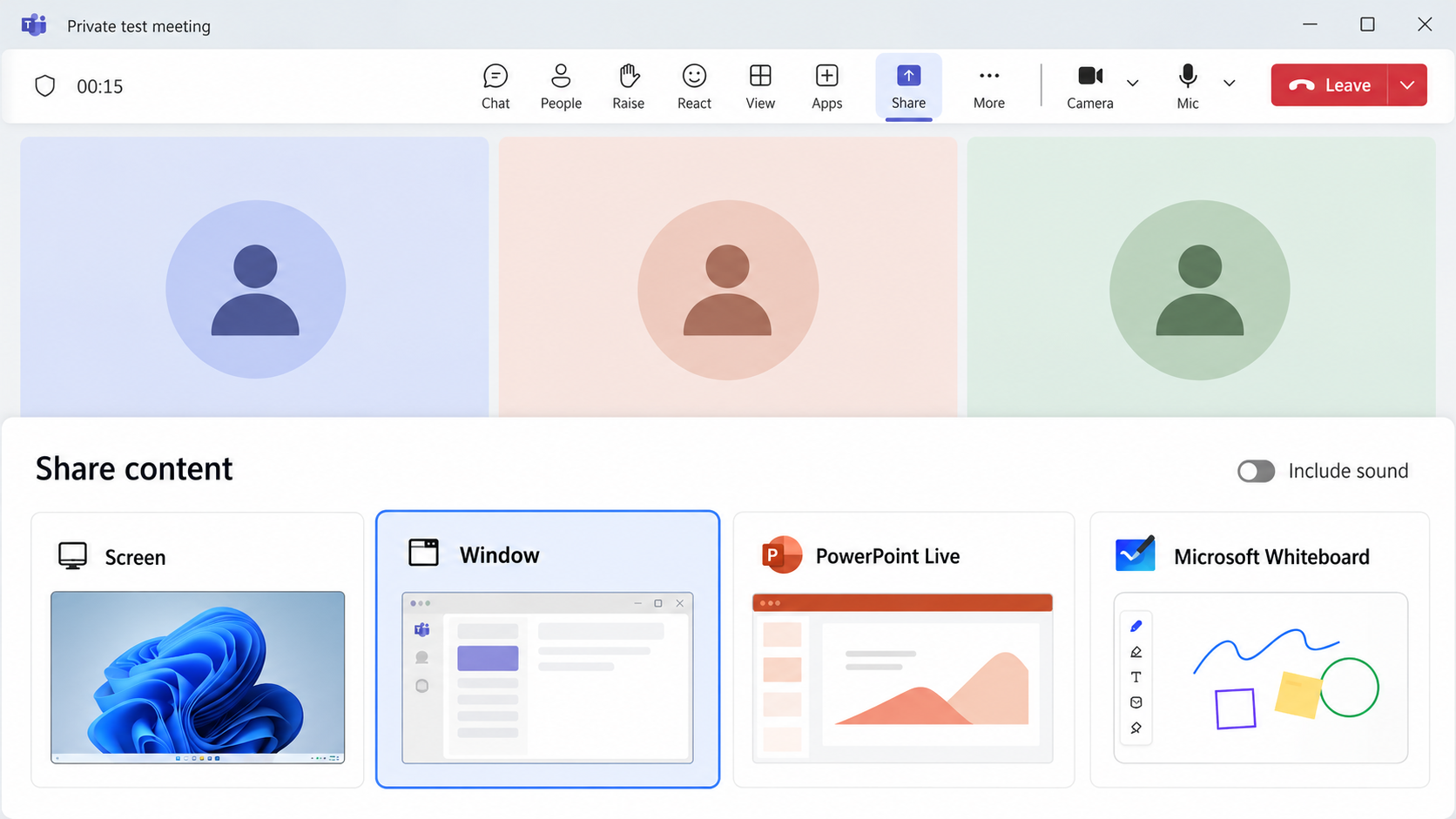
Choose the narrowest sharing option that meets the needs of the meeting. -
Select the correct window or screen. Review the available previews carefully. Select only the application window or screen you intend to show, and then choose Share.
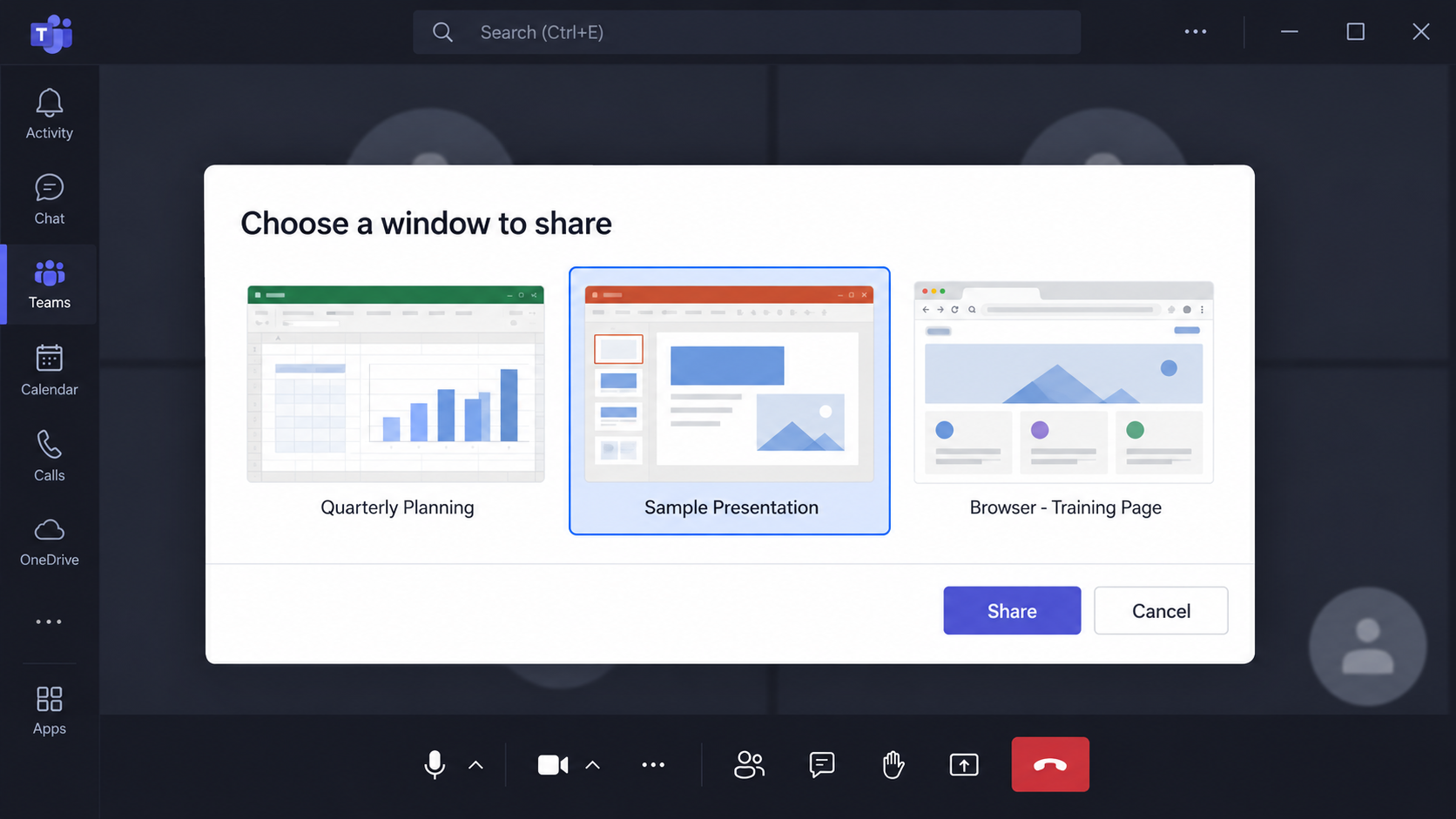
Select the intended application window before beginning the presentation. -
Confirm that you are presenting. Look for the Teams presenting indicator or highlighted border. Confirm that participants can see the intended content before continuing.
-
Stop presenting when finished. Select Stop presenting before opening unrelated files or applications. Verify that the presenting indicator disappears.
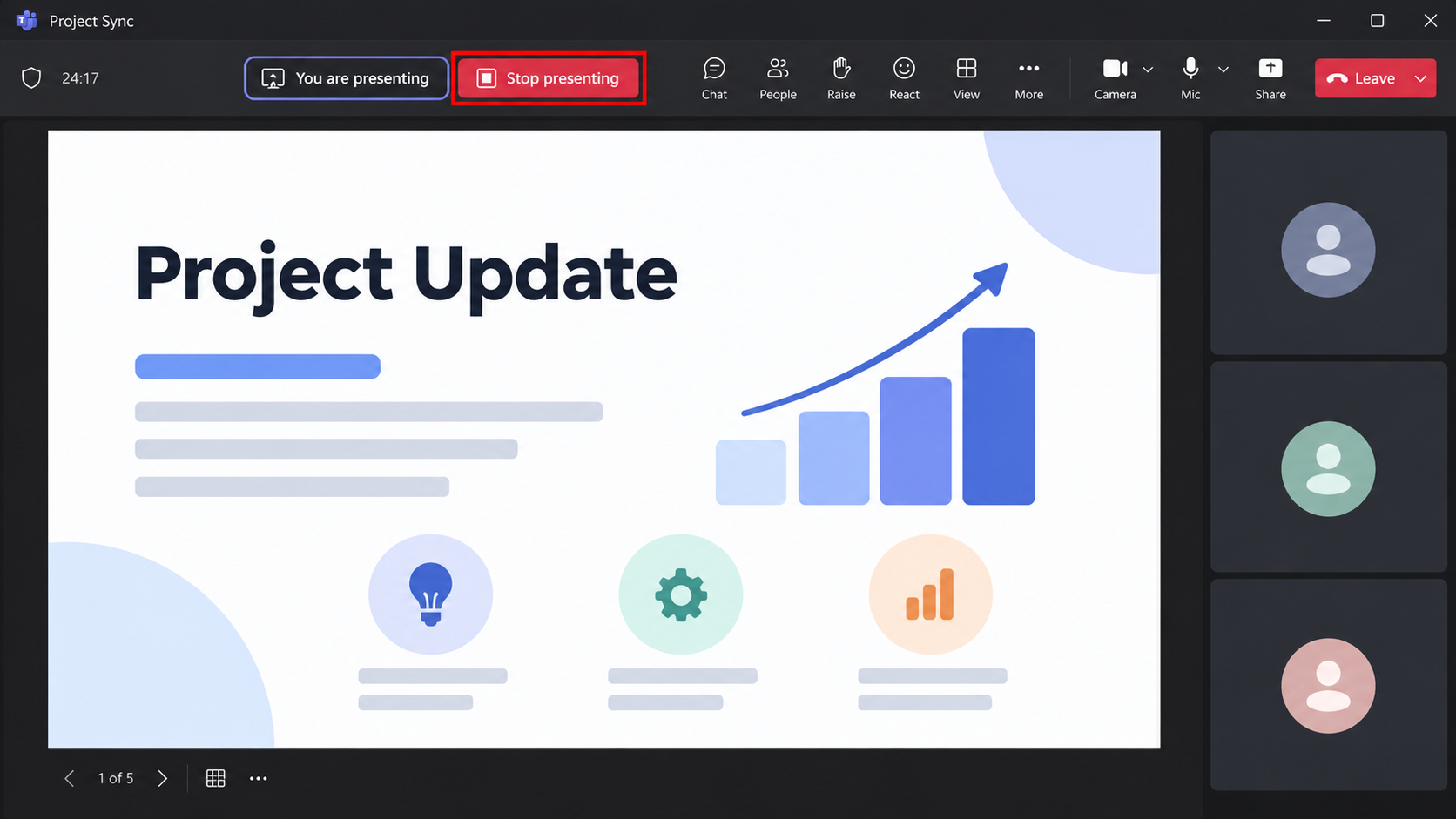
Select Stop presenting when the demonstration is complete.
Safer screen-sharing practices
- Share one application window instead of your entire screen whenever possible.
- Close email, messaging applications, password managers, and confidential documents.
- Suppress desktop notifications before the meeting.
- Confirm the correct window is selected before choosing Share.
- Stop presenting before switching to unrelated material.
- Do not display passwords, authentication codes, client records, or private messages.
Common problems and what to check
The Share button is unavailable
The organizer may have restricted presenting to organizers or presenters. Ask the organizer to change your meeting role.
Participants cannot hear the video
Stop sharing, turn on Include sound, and share again. Verify that Teams and Windows are using the expected audio device.
The wrong screen or window is visible
Select Stop presenting immediately. Reopen the Share menu and select the intended screen or application window.
A window does not appear in the sharing choices
Make sure the application is open and not minimized. If it still does not appear, reopen the application and the Teams sharing menu.
Security reminder: Sharing your entire screen can reveal notifications, passwords, client data, or unrelated browser tabs. Prefer a single application window and close sensitive content first.
Official Microsoft guidance
- Present content in Microsoft Teams meetings
- Use meeting controls in Microsoft Teams
- Share sound from your computer in Teams
Frequently asked questions
Should I share my screen or one window?
Share one application window whenever possible. Share your entire screen only when participants need to follow your work across multiple applications.
Can participants see my notifications?
Notifications may be visible when you share your entire screen. Turn on Do Not Disturb or otherwise suppress notifications before presenting.
Why do my buttons or menus look different?
Microsoft changes interfaces gradually, and your license, device, application version, and organization settings can affect what appears. Use the closest matching control and contact your administrator when required.
Can I use these steps with a personal Microsoft account?
Some steps may be similar, but this guide is written for Microsoft 365 work accounts. Business meeting policies and presentation permissions may behave differently.
What should I do if I accidentally display sensitive information?
Stop presenting immediately. Follow your organization’s incident-reporting procedures and contact your IT administrator if protected or confidential information may have been exposed.
Need help with Microsoft 365?
PCC helps Bay Area businesses configure, secure, and support Microsoft 365 so employees can work productively without creating unnecessary risk. Request a conversation with PCC.