

← View All Microsoft 365 How-To Guides
SharePoint document libraries give teams a shared location for business files. Uploading the file is only the first step. You also need to confirm that it is in the correct site and that the sharing settings match the business need.
Before you begin
- Confirm the correct SharePoint site and document library.
- Use an approved file name that does not expose unnecessary confidential information.
- Know whether recipients need to edit the file or only view it.
- Confirm whether external sharing is permitted.
How to upload a file to SharePoint
-
Open the correct SharePoint site and select the document library, often named Documents.

Open the correct SharePoint site and select its document library. -
Open the folder where the file belongs. Avoid placing everything at the top level of the library.
-
Select Upload, choose Files, and select the file from your computer. You can also drag a file into the library when supported.
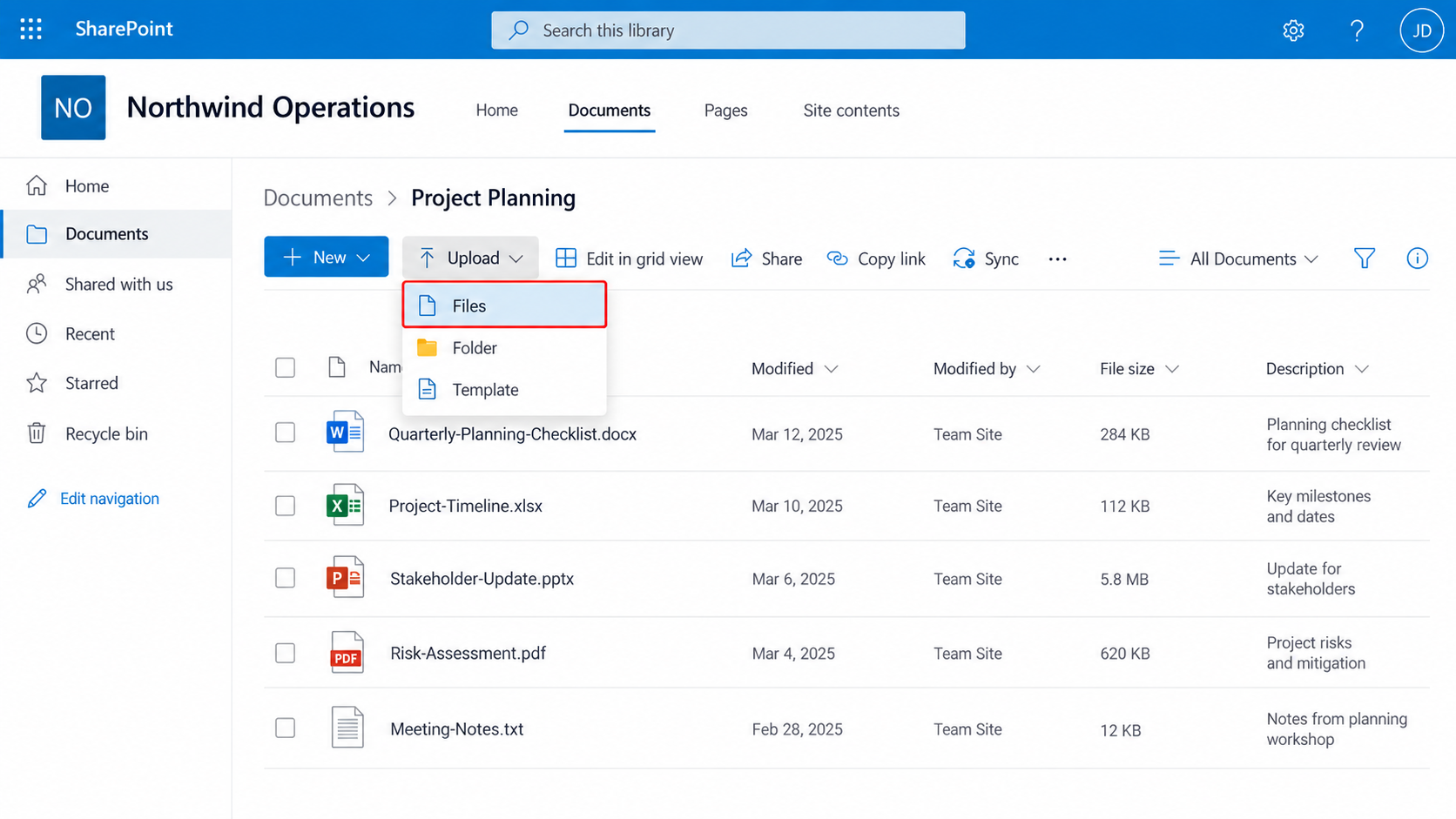
Select Upload, then choose Files. -
Wait for the upload to finish and confirm that the file appears in the correct folder.

Confirm that the uploaded file appears in the intended folder. -
Open the file briefly to confirm that it is the intended version.
How to share the SharePoint file
-
Select the file, then select Share.
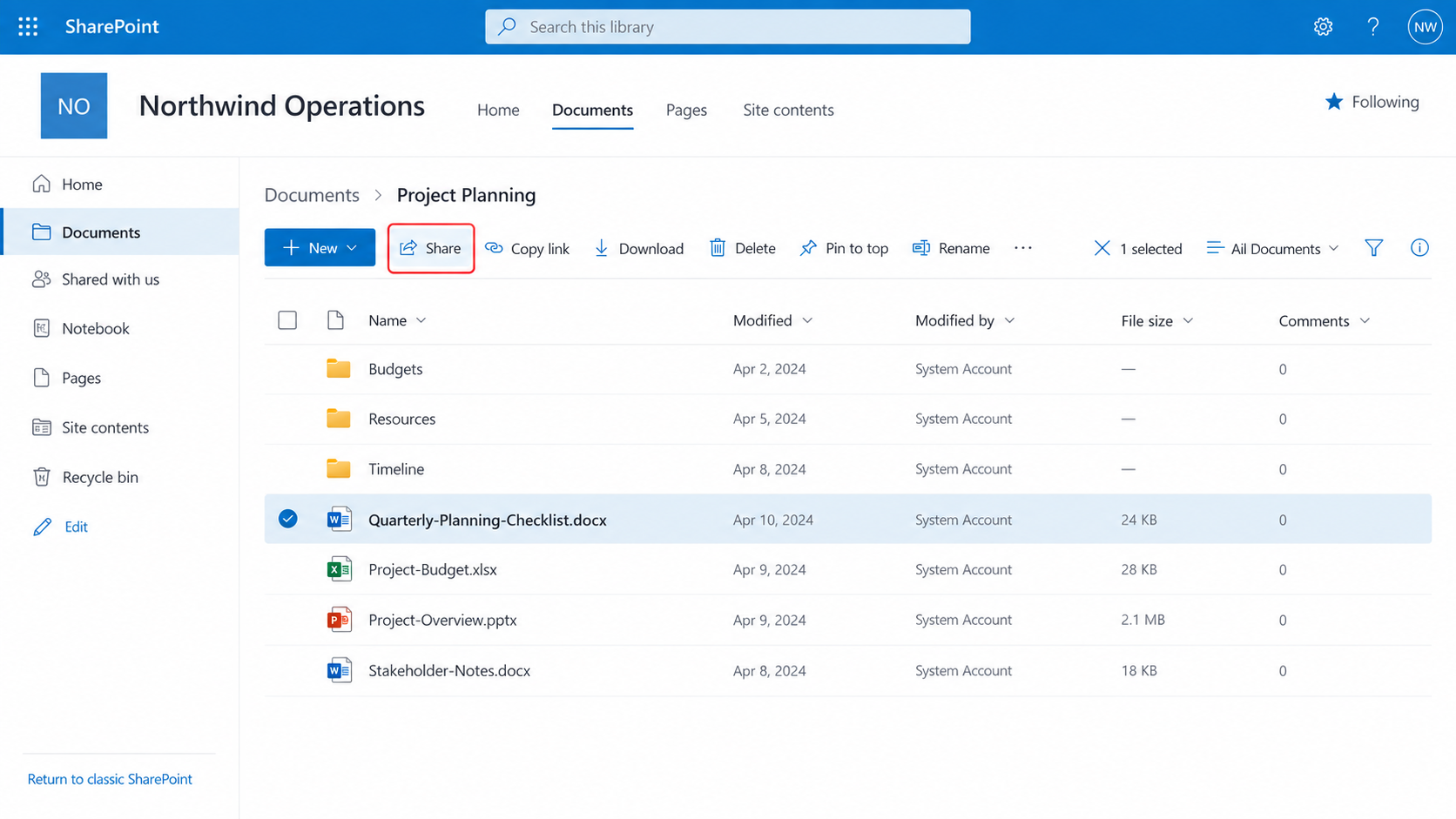
Select the file, then open the Share dialog. -
Open Link settings or the permissions menu before copying the link.
-
Choose the narrowest appropriate audience, such as specific people or people in your organization. Avoid an “Anyone” link unless it is permitted and truly necessary.
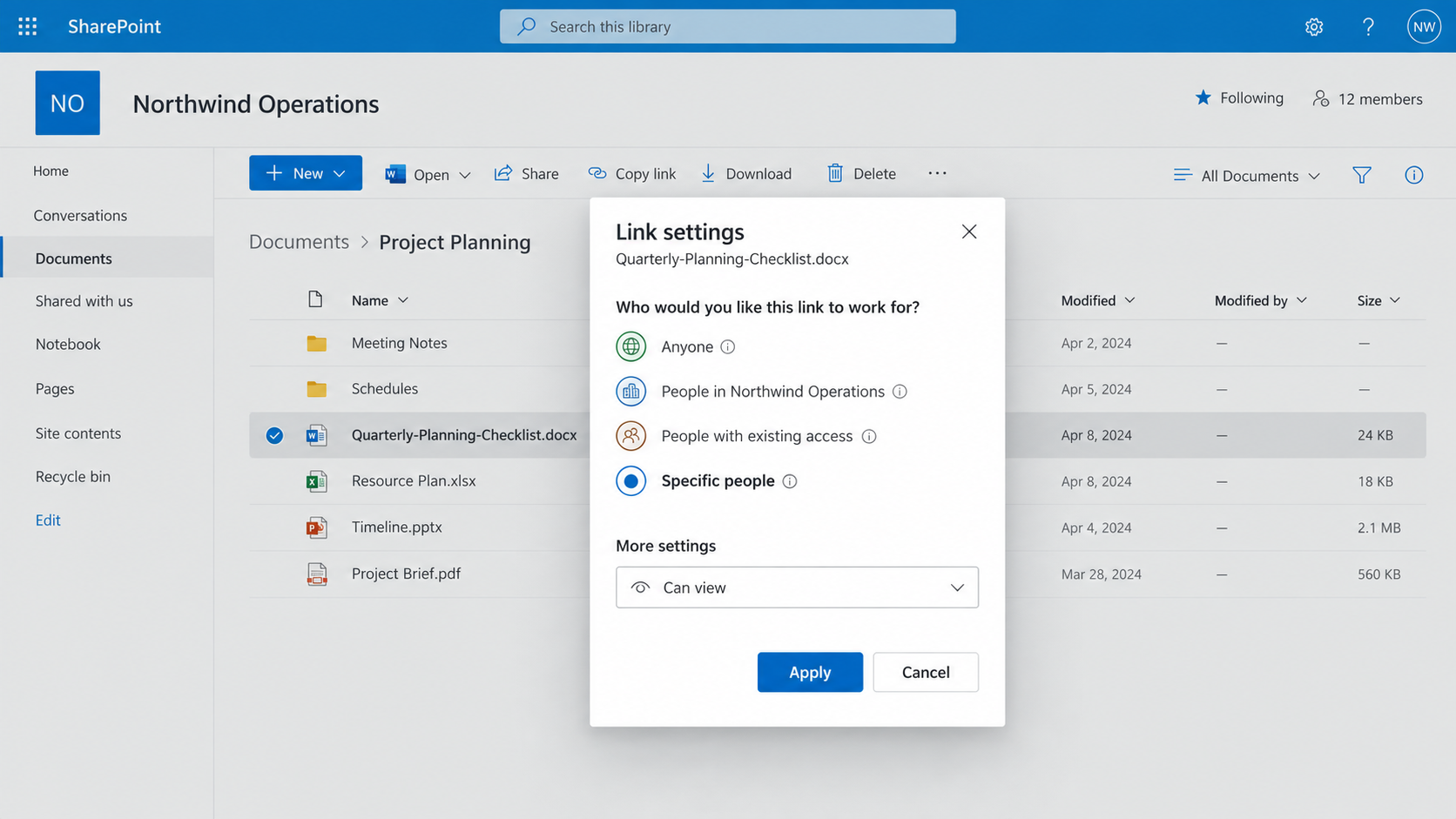
Choose the narrowest audience that meets the business need. -
Choose Can view unless recipients need to change the file. Use Can edit only when collaboration is required.
-
Enter the recipients and send the invitation, or select Copy link and place it in the intended message.
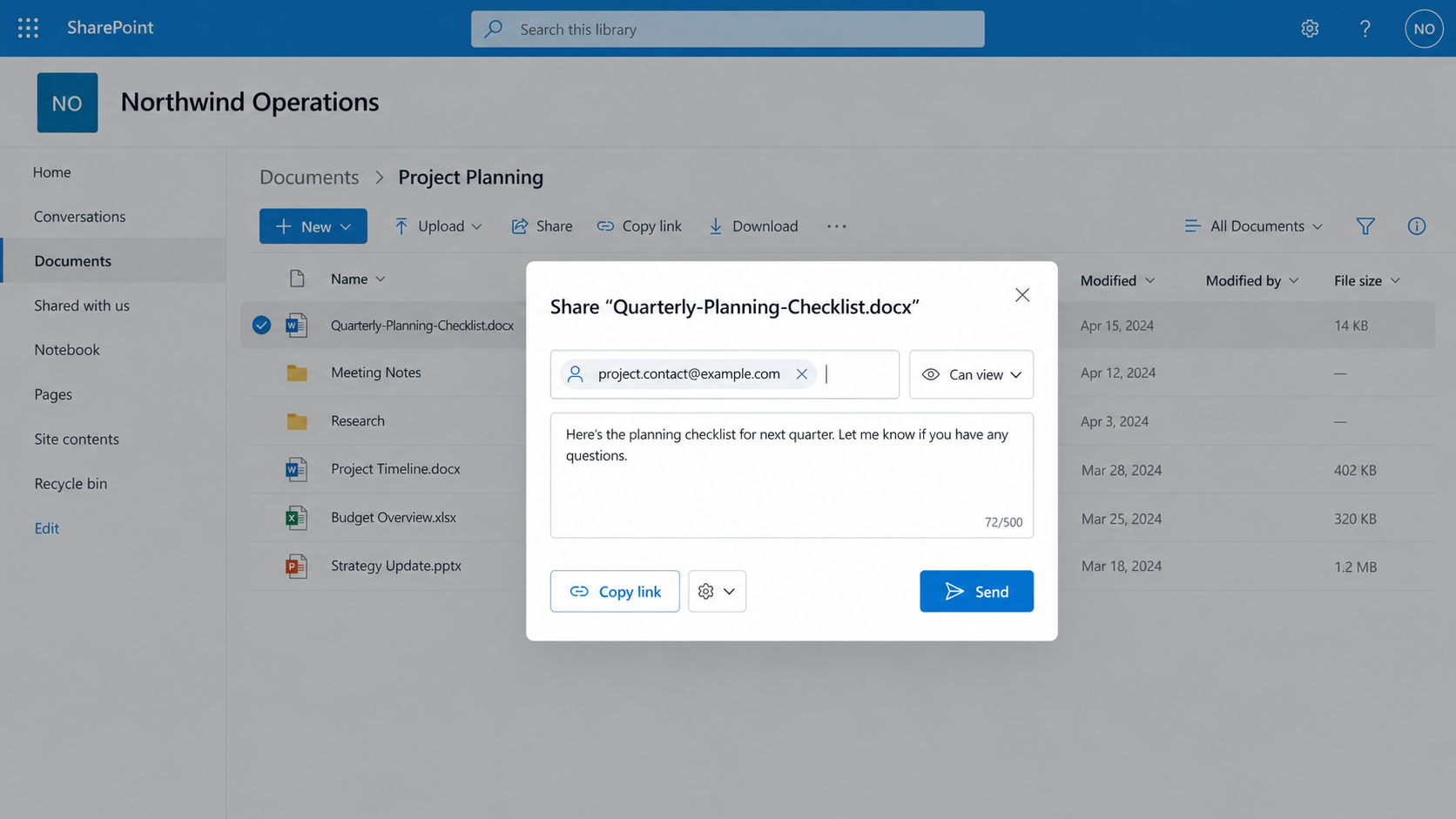
Confirm the recipients and permission level before sending the link. -
Open Manage access to confirm the people and links that can reach the file.
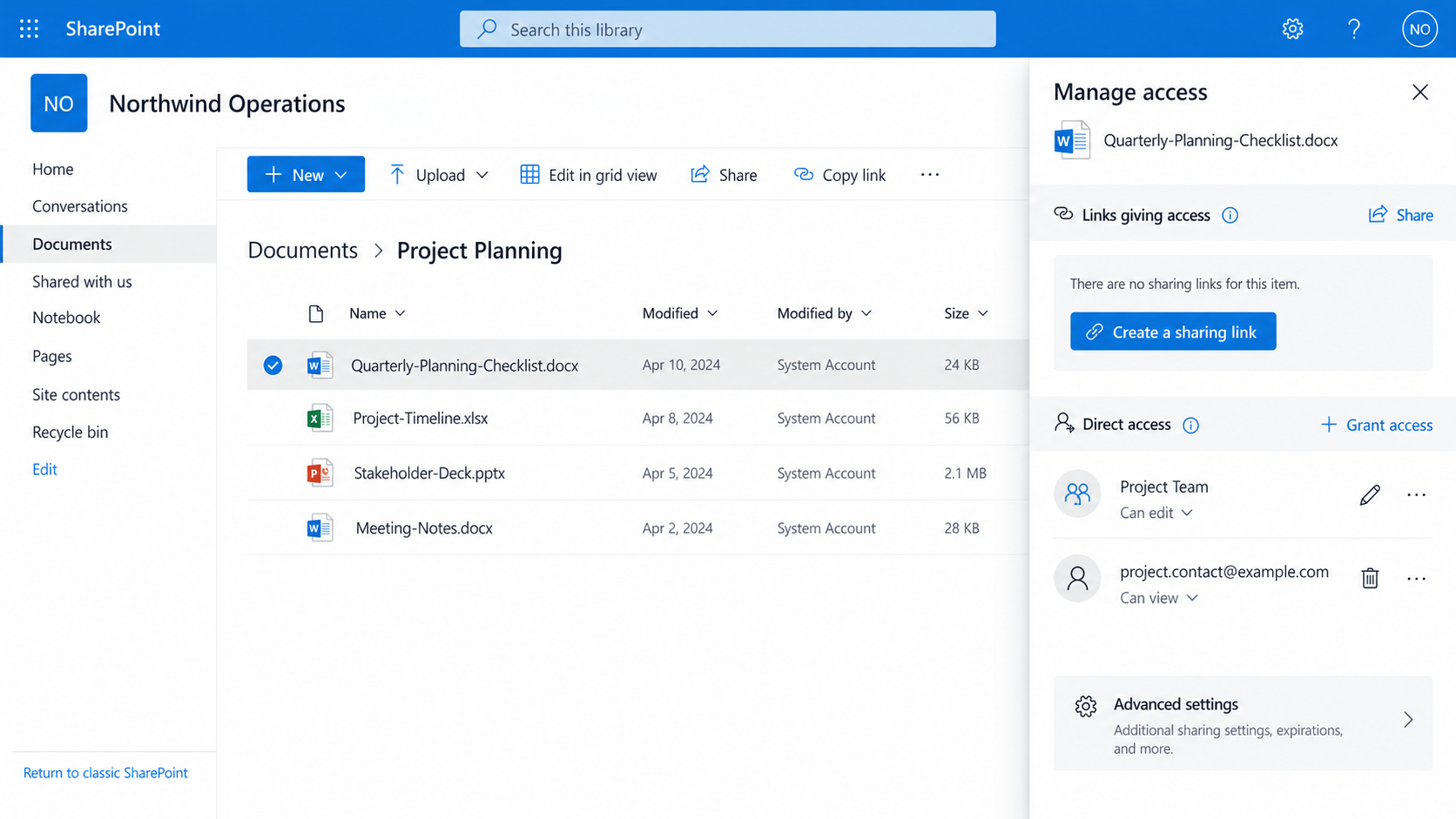
Use Manage access to review existing people and sharing links.
Choose the right permission
- Can view: Use when recipients only need to read the file.
- Can edit: Use when recipients must update or collaborate on the file.
- Specific people: Best default for sensitive or external sharing.
- People in your organization: Appropriate for broad internal resources when company policy allows it.
- Anyone with the link: May not require sign-in and may be disabled by your organization. Use only when approved.
Security reminder: Do not assume that copying a SharePoint URL creates the correct permissions. Always review the link settings and existing access before sending it.
Official Microsoft guidance
- Upload files and folders to a library
- Share SharePoint files or folders
- Manage sharing and permissions in OneDrive and SharePoint
Common problems
The recipient receives “Access denied”
Confirm the exact email address, link type, and recipient account. External recipients may need to use the same address that received the invitation.
The recipient can edit when they should only view
Open Manage access and change or remove the existing permission. Creating a new view-only link does not automatically remove an older edit link.
The Upload button is missing
You may have view-only access, the library may require a different process, or your organization may restrict uploads. Contact the site owner.
Frequently asked questions
Should I attach the file to email instead?
A SharePoint link usually keeps collaboration on one current copy. An attachment creates another copy that may become outdated.
Can I share a whole folder?
Yes, but recipients may gain access to every item in that folder. Review the contents and permissions first.
Can I remove access later?
Yes, if you have the necessary permission. Use Manage access to remove a link or a person’s direct access.
Need help organizing SharePoint?
PCC helps businesses structure SharePoint libraries, control external sharing, and simplify employee access. Request a conversation with PCC.