
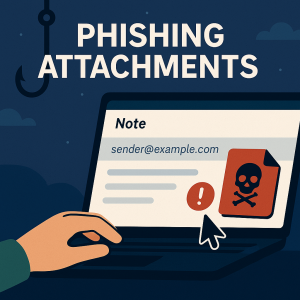
 It starts with a simple email—maybe it looks like it’s from a vendor, a coworker, or even your boss. The subject line reads “Invoice Attached” or “Employee Review.” And there’s a file waiting for you to open.
It seems routine. But in reality, that innocent-looking attachment could be the beginning of a full-blown cyberattack.
Phishing attachments are one of the oldest and most persistent tricks in the cybercriminal playbook. They don’t rely on flashy emails or fake websites. They rely on curiosity, routine, and a moment of inattention. And once opened, these files can launch malware, steal credentials, or give attackers access to your system—without you ever realizing it.
That’s why knowing how to spot phishing attachments is just as important as spotting sketchy links.
What Are Phishing Attachments?
Phishing attachments are files sent in deceptive emails that contain malicious content. They’re typically disguised as something the recipient might expect—an invoice, a resume, a quote, a contract, or even a shared document from a colleague.
The goal is to get the recipient to open the file and trigger an action. That action might:
-
Install malware or ransomware
-
Open a macro that downloads further payloads
-
Lead the user to a spoofed login page inside a PDF
-
Install keyloggers or remote access tools
These attachments are often used in targeted attacks because they feel familiar and harmless. Many people are trained to look for suspicious links—but files? Those still get opened far too often.
💡 Did You Know?
A 2023 report found that phishing attachments were used in over 66% of targeted malware attacks on small and mid-sized businesses.
Common File Types Used in Phishing Attachments
Attackers know that certain file types trigger fewer alarms, so they use formats that look normal but can still deliver malicious content. These include:
-
PDFs – Can contain embedded links, scripts, or spoofed login forms
-
Word documents (.doc/.docm) – Often include malicious macros
-
Excel files (.xls/.xlsm) – Also macro-enabled and used for financial lures
-
ZIP/RAR archives – Used to compress and hide malware
-
HTML files (.htm/.html) – Open fake login pages in the browser
-
ISO files – Disk image files often used to bypass email scanning tools
What makes phishing attachments so effective is that these file types are widely used in business. They don’t look suspicious on their own—but the context around them is what matters most.
Real-World Example
You receive an email that appears to come from your accounting software provider, QuickBooks. The subject line says: “Overdue Invoice – Please Review.”
Attached is a PDF labeled Invoice_03721.pdf.
The email looks professional. The logo is right. The language is typical.
But when you open the file, it asks you to log in to view the full document. You’re taken to a page that looks like a QuickBooks login—but it’s hosted on a fake domain.
By entering your credentials, you’ve just handed them over to an attacker.
This is a classic phishing attachment scam—and it works far too often.
💡 Did You Know?
Many phishing attacks use PDF or Word attachments to lead users to fake login pages—tricking them into giving up credentials without ever clicking a link in the email.
How to Tell If an Attachment Is Suspicious
If you receive an unexpected file, especially one that asks you to log in, enable macros, or change security settings, treat it as high-risk. Ask yourself:
-
Was I expecting this file from this sender?
-
Is the file type appropriate for the situation?
-
Does the message seem urgent or pushy?
-
Does the sender’s email address check out?
-
Is the attachment password protected or zipped without explanation?
When in doubt, don’t open it – verify first. Call or message the sender directly (don’t reply to the email) and ask if they sent the file. It takes 30 seconds to confirm and could prevent hours of cleanup later.
💡 Did You Know?
Attackers often send phishing attachments from hijacked email accounts, making the message look even more believable.
What to Do If You’ve Opened a Suspicious File
If you think you’ve opened a malicious attachment:
-
Disconnect from the internet to stop further communication with the attacker
-
Notify your IT team immediately
-
Do not try to delete or fix anything on your own—preserve evidence
-
Run a malware scan, but let your provider lead the investigation
Quick action can prevent lateral movement or wider compromise—so don’t delay.
How PCC Can Help
At Professional Computer Concepts, we don’t just tell your team what not to click—we train them to think critically and act confidently.
Our managed cybersecurity services include:
-
Phishing simulations that include realistic phishing attachments
-
Ongoing security awareness training that helps teams spot red flags
-
Managed endpoint protection (EDR) and 24/7 threat detection (MDR)
-
DNS filtering and PAM to minimize exposure
-
Strategic vCIO planning so security isn’t just reactive—it’s proactive
We help your team become part of your security strategy—not your weakest link.
Want to Strengthen Your Team’s Awareness?
Check out these helpful resources:
Final Thoughts
Phishing attachments are designed to look like everyday business documents. They blend in. They don’t trigger alarms. They rely on routine and trust.
That’s why they still work.
But with the right awareness, a little hesitation, and a clear policy around email attachments, these threats become much easier to catch—and much harder for attackers to use successfully.