
Teach your team how to check a phishing link to reduce cyber risk.
You’ve probably heard the advice before: hover before you click. But in the moment—when you’re juggling emails, jumping between meetings, and just trying to get through your day—it’s easy to forget.
And that’s exactly what cybercriminals count on.
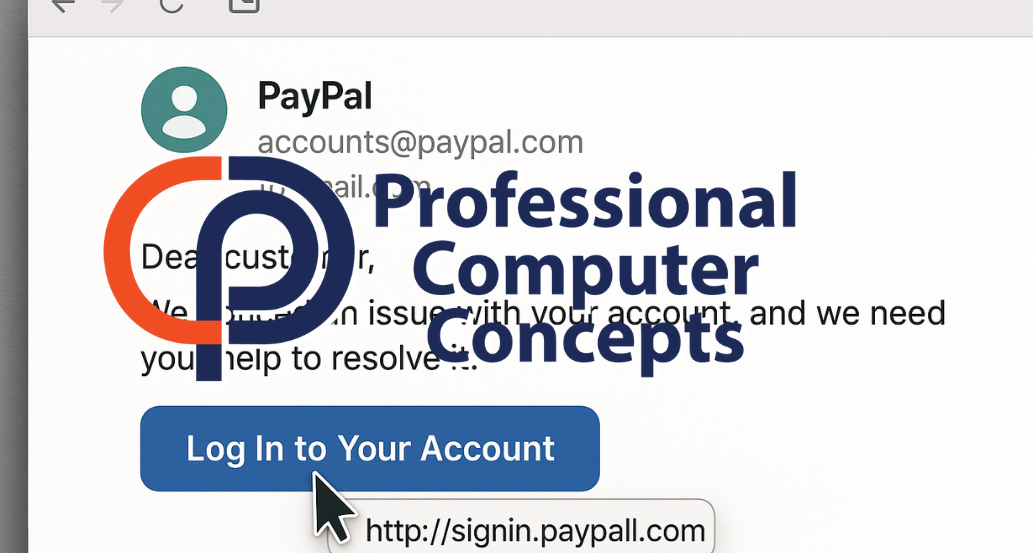
Phishing emails are getting more convincing, and the links they contain often look legitimate at first glance. But one quick hover can reveal a completely different destination—sometimes a fake login page, sometimes a site loaded with malware. That’s why knowing how to check a phishing link is one of the simplest and most effective ways to stop a scam in its tracks.
Let’s break down what to look for, why this technique still works, and when it might not be enough on its own.
What Is a Phishing Link?
A phishing link is a URL designed to trick you into clicking. It might lead to a fake login page, download malware, redirect you to another malicious site, or silently collect your data.
Phishing links are often disguised with:
-
Legitimate-looking text or buttons
-
Shortened URLs (like bit.ly or tinyurl)
-
Hidden redirects
-
Lookalike domains (like
micros0ft-support.com)
They’re usually delivered via email, but can also appear in text messages, social media DMs, or even QR codes.
Why Hovering Over Links Still Works
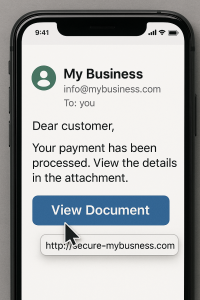
When you hover your mouse over a link—without clicking—it reveals the actual destination URL. This simple move allows you to check where a link is pointing before taking the risk of going there.
It works because attackers often mask the real destination behind:
-
Display text (e.g., “Click here to view invoice”)
-
Hyperlinked images or buttons
-
URLs that look familiar but are slightly off
Hovering gives you a chance to ask:
Does this link go where it says it goes?
Does the domain match the brand?
Is there anything suspicious about the structure?
It’s a basic but powerful habit that can prevent a lot of mistakes—especially when paired with awareness of red flags.
💡 Did You Know?
A 2023 report found that employees who knew how to check a phishing link using hover behavior were 67% less likely to click on malicious URLs.

Don’t guess where a link goes. Learn how to check a phishing link in seconds.
What to Look for in a Suspicious Link
If you hover and something doesn’t look right, here’s what to check:
-
Misspelled or extra characters in the domain (
micros0ft.com,secure-login-paypall.com) -
Subdomains that mislead (e.g.,
paypal.secure-login.comis not PayPal—it’s a trick) -
URLs that don’t match the email context (e.g., a Microsoft-branded email linking to
cloudstoragedeals.net) -
Use of URL shorteners that hide the true domain (
bit.ly,tinyurl, etc.) -
Inconsistent formatting or random strings in the address
When Hovering Isn’t Enough
While hovering is effective, it’s not foolproof. Mobile devices, for example, make it harder to preview links. Some sophisticated phishing links even lead to websites that look like the real thing—with the only giveaway hidden deep in the browser bar.
Other tactics that weaken the power of hovering include:
-
Cloaking techniques that change the destination after a delay
-
Redirect chains that start on a safe site but end somewhere malicious
-
URL shorteners embedded in QR codes or text-based buttons
That’s why hovering is one tool—not your only tool. The key is combining it with strong habits, like checking the sender, pausing before clicking, and knowing what to look for.
💡 Did You Know?
Many phishing attacks use URLs that include real brand names—just not in the right place. Knowing how to check a phishing link helps you spot those misleading tricks before you click.
Examples of Phishing Links (and What to Do)
Legit-Looking Link:https://microsoft-login.securitycenter.com
Reality: Not Microsoft—this is a spoofed subdomain that uses the brand name to mislead.
Shortened Link in Email:https://bit.ly/3Tx67YZ
Reality: No way to know where it leads without expanding it—risky behavior in business settings.
Fake URL in Button:
“Click here to view your invoice” → http://secure-invoice.netlify.app
Reality: Netlify is a free hosting service—often used to quickly stand up phishing pages.
What to do:
When in doubt, don’t click. Instead, go directly to the brand’s website by typing the URL manually or using a trusted bookmark.
How to Train Your Team to Check Links Safely
Teaching your team how to check a phishing link doesn’t require a cybersecurity degree. You just need to create awareness and give them real-world examples.
We recommend:
-
Running phishing simulations that include deceptive links
-
Offering short training videos or interactive content
-
Reinforcing the “hover before you click” habit in meetings and internal communications
-
Encouraging employees to ask questions when something feels off
How PCC Can Help
At Professional Computer Concepts, we help businesses strengthen their defenses—starting with their people. Phishing emails are still the #1 way cyberattacks begin, and we help stop them before they cause damage.
Our solutions include:
-
Phishing simulations with real-world links and tactics
-
Security awareness training focused on practical, repeatable habits
-
DNS filtering to block known malicious sites
-
Strategic guidance through our vCIO service
If you’re ready to take phishing education from a once-a-year training to a real part of your culture, we can help.
Learn More
Here are a few helpful resources to support your team:
Final Thoughts
Knowing how to check a phishing link might seem like a small thing—but it can make all the difference. It’s the moment between “nothing happened” and “we just got breached.”
Most phishing attacks aren’t successful because the scam was brilliant. They succeed because the person on the receiving end was busy, tired, or didn’t think twice. Hovering before you click is one of the easiest habits you can teach—and one of the most effective defenses you can build.
Let’s talk about helping your team stay safer—one link at a time.