

 OneDrive makes it easy to share files with coworkers, clients, or anyone else, whether they’re down the hall or across the globe. Knowing how to share a file with OneDrive ensures your documents stay accessible, secure, and easy to manage. In just a few clicks, you can control who has access, set permissions, and send a shareable link. It’s a simple way to collaborate without sacrificing security. Here’s how to share a file with OneDrive—step by step—and we have even included a short video to help you follow along.
Step by Step Guide
Step 1: Sign In to OneDrive
Go to onedrive.com and log in using your Microsoft 365 account credentials.
Step 2: Locate the File
Browse to the file you want to share. You can use the search bar or navigate through your folders.
Step 3: Click “Share”
Hover over the file, then click the Share icon (a person with a plus sign). A sharing window will pop up.

Step 4: Choose Your Sharing Settings
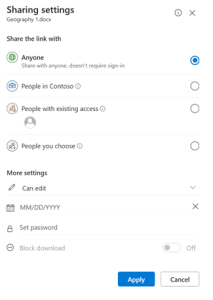 In the sharing window, you’ll see options to control who can access the file:
-
Anyone with the link – Use this only if security isn’t a concern.
-
People in [Your Organization] – Best for internal sharing.
-
People with existing access – Keeps current permissions.
-
Specific people – Ideal for securely sharing with named individuals.
You can also choose whether people can view or edit the file.
Step 5: Send the Link
Once your settings are selected, enter the recipient’s email address, add a message if needed, and click Send. You can also copy the link to share it manually.
Quick Tips
-
Use strong authentication. Always log in with MFA enabled to keep your files secure.
-
Review permissions regularly. Especially for sensitive documents.
-
Don’t overshare. Limit access to only the people who need it.
- Learn more about OneDrive Security
Need help managing OneDrive securely for your team? We’re here to help.
For a visual walkthrough, you might find this video helpful:
If you need further assistance or have questions about managing OneDrive for your team, feel free to ask!
Why It’s Important to Know How to Share a File with OneDrive
Understanding how to share a file with OneDrive isn’t just about convenience, but it’s about keeping control over your data. Regardless of if you are sending a confidential document to a client or sharing internal resources with your team, OneDrive gives you the tools to do it securely. With the right settings, you can limit access, prevent editing, and even set expiration dates on links. It’s a smart way to protect your business while staying productive.
About Professional Computer Concepts
At Professional Computer Concepts, we help Bay Area businesses stay productive and protected with modern IT solutions that actually make sense. From file sharing and cloud collaboration to cybersecurity and mobile device management, we don’t just support your technology—we make it work for your business.
Need help setting up OneDrive, managing permissions, or securing your data? Let’s talk. We’re here to make your tech easier to use and harder to compromise.
Contact us to get started or explore our Microsoft 365 Resource Center for more tips.